> ## Documentation Index
> Fetch the complete documentation index at: https://docs.cloudglue.dev/llms.txt
> Use this file to discover all available pages before exploring further.
# AWS S3
> Connect your S3 buckets to Cloudglue using cross-account IAM roles
The AWS S3 data connector allows you to connect any S3 bucket to Cloudglue, enabling you to use your S3 URIs directly with our endpoints without manually uploading files.
## How It Works
This connector creates a secure bridge between your S3 buckets and Cloudglue using IAM Roles:
* **Direct S3 access** - We only access your files when you explicitly use them.
* **No manual uploads** - Skip the process of manually uploading files to Cloudglue.
* **S3 URI support** - Use your existing S3 URIs directly with Cloudglue endpoints.
## Overview
1. **Configure S3** using either the CloudFormation template or the manual setup process.
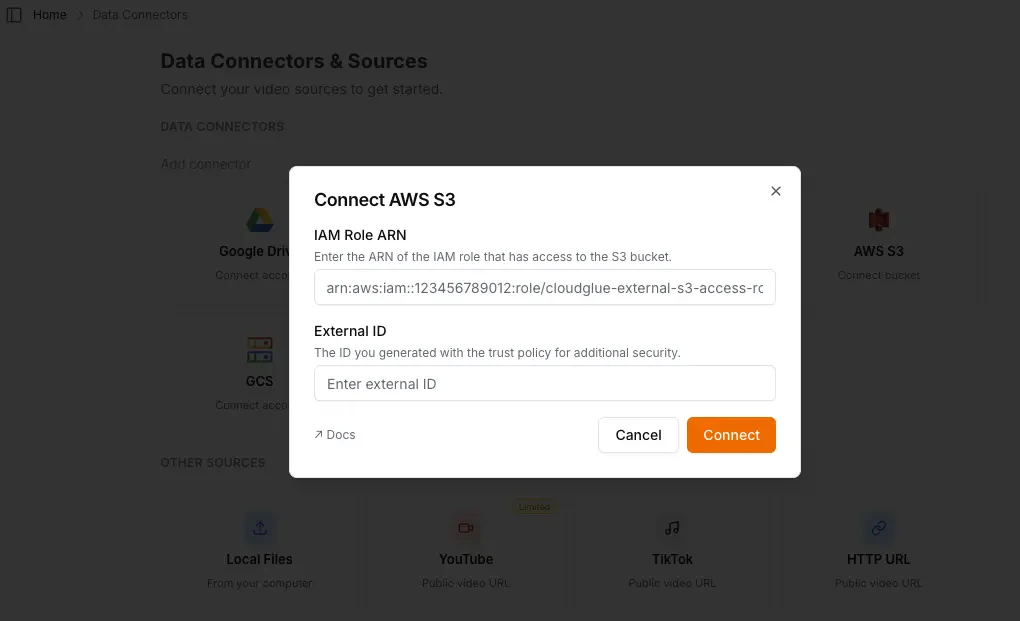
2. **Provide the role ARN** and your `externalId` to Cloudglue.
3. **Configure the connector** on our web platform.
## AWS Setup
### Option 1: CloudFormation Template (Recommended)
We provide a CloudFormation template that automates the AWS setup process, handling IAM role creation, policies, and trust relationships.
#### CloudFormation Template
You can download the template [here](https://media.cloudglue.dev/templates/cloudglue-assumed-role.cft.yaml).
```yaml theme={null}
AWSTemplateFormatVersion: '2010-09-09'
Description: 'CloudFormation template for Cloudglue external S3 access role'
Parameters:
BucketName:
Type: String
Description: 'S3 bucket name that you want to grant access to for Cloudglue'
Default: 'your-bucket-name-here'
ExternalId:
Type: String
Description: 'External ID to prevent confused deputy problem (required for third-party access)'
MinLength: 2
MaxLength: 1224
AllowedPattern: '^[a-zA-Z0-9+=,.@:/-]+$'
Resources:
CloudglueExternalS3AccessRole:
Type: AWS::IAM::Role
Properties:
RoleName: cloudglue-external-s3-access-role
Description: 'IAM role for Cloudglue external S3 access with cross-account permissions'
AssumeRolePolicyDocument:
Version: '2012-10-17'
Statement: - Effect: Allow
Principal:
AWS: arn:aws:iam::992382634011:root
Action: sts:AssumeRole
Condition:
StringEquals:
sts:ExternalId: !Ref ExternalId
ManagedPolicyArns: []
Policies: - PolicyName: CloudglueExternalS3AccessPolicy
PolicyDocument:
Version: '2012-10-17'
Statement: - Sid: AllowCrossAccountRoleReadAccess
Effect: Allow
Action: - s3:GetObject - s3:ListBucket - s3:GetBucketLocation
Resource: - !Sub 'arn:aws:s3:::${BucketName}'
- !Sub 'arn:aws:s3:::${BucketName}/_' - Sid: AllowCrossAccountRoleWriteAccess
Effect: Allow
Action: - s3:PutObject
Resource: - arn:aws:s3:::cloudglue-external-transfer - arn:aws:s3:::cloudglue-external-transfer/_
Outputs:
RoleArn:
Description: 'ARN of the created IAM role'
Value: !GetAtt CloudglueExternalS3AccessRole.Arn
Export:
Name: !Sub '${AWS::StackName}-RoleArn'
RoleName:
Description: 'Name of the created IAM role'
Value: !Ref CloudglueExternalS3AccessRole
Export:
Name: !Sub '${AWS::StackName}-RoleName'
```
**To use this template:**
1. Download the template file.
2. Navigate to the **CloudFormation** console in your AWS account.
3. Click **Create stack** (with new resources).
4. Select **Upload a template file** and upload the `.yaml` file.
5. Name the stack, set your `BucketName`, and the `externalId`.
6. Deploy the stack.
### Option 2: Manual Setup
If you prefer manual configuration, you can create the required IAM role and policies yourself.
**Important**: The IAM role MUST be named exactly
`cloudglue-external-s3-access-role` for the connector to work.
**To create the role**
1. Navigate to the **IAM console** -> **Roles**.
2. Click **Create role**.
3. Select **AWS account** as the trusted entity.
4. Select **Another AWS account** and enter our account ID: `992382634011`.
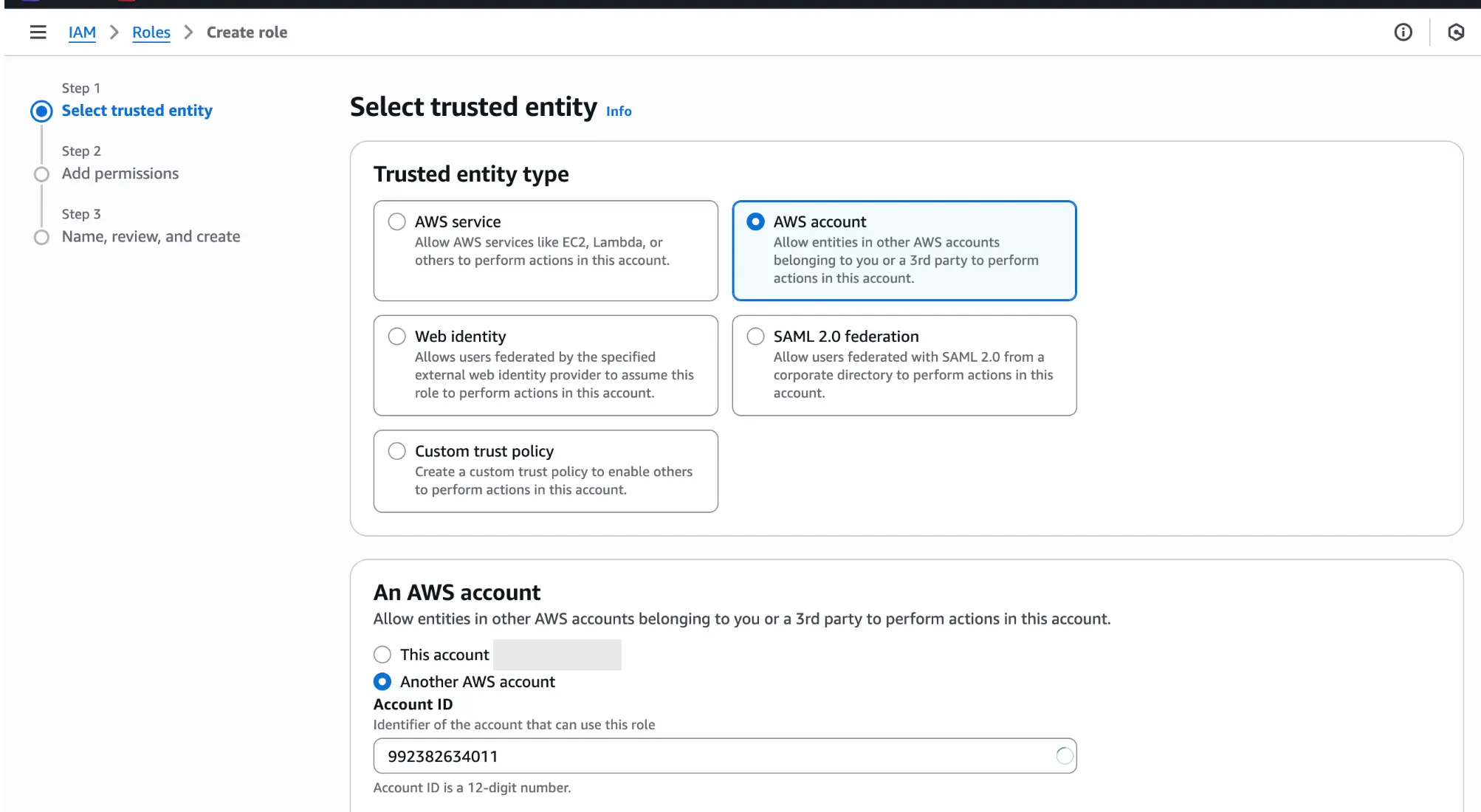 5. Click **Next**. Skip the permissions page (we will add an inline policy later).
6. Name the role `cloudglue-external-s3-access-role`.
7. Click **Create role**.
**Add policies**
1. Open the role you just created.
2. Click **Add permissions** -> **Create inline policy**.
3. Use the **JSON policy editor** and paste the following:
Remember to replace `YOUR_BUCKET_NAME` with your actual S3 bucket name in the
manual policy setup.
#### Role Policies
```json theme={null}
{
"Version": "2012-10-17",
"Statement": [
{
"Sid": "AllowCrossAccountRoleReadAccess",
"Effect": "Allow",
"Action": ["s3:GetObject", "s3:ListBucket", "s3:GetBucketLocation"],
"Resource": [
"arn:aws:s3:::YOUR_BUCKET_NAME",
"arn:aws:s3:::YOUR_BUCKET_NAME/*"
]
},
{
"Sid": "AllowCrossAccountRoleWriteAccess",
"Effect": "Allow",
"Action": ["s3:PutObject"],
"Resource": [
"arn:aws:s3:::cloudglue-external-transfer",
"arn:aws:s3:::cloudglue-external-transfer/*"
]
}
]
}
```
4. Click **Next**.
5. Name the policy and click **Create policy**.
#### Trust Relationship
The trust relationship is already attached to the role, so you can skip this step.
```json theme={null}
{
"Version": "2012-10-17",
"Statement": [
{
"Effect": "Allow",
"Principal": {
"AWS": "arn:aws:iam::992382634011:root"
},
"Action": "sts:AssumeRole",
"Condition": {
"StringEquals": {
"sts:ExternalId": "ID_YOU_GENERATE"
}
}
}
]
}
```
Want to learn more about trust relationships? See the [AWS documentation on
trust policies with IAM
roles](https://aws.amazon.com/blogs/security/how-to-use-trust-policies-with-iam-roles/).
Need help with CloudFormation templates? Check out the [AWS CloudFormation
Templates
resources](https://aws.amazon.com/cloudformation/resources/templates/).
## Connecting to Cloudglue
1. **Get the role ARN** and `externalId` from your AWS account.
5. Click **Next**. Skip the permissions page (we will add an inline policy later).
6. Name the role `cloudglue-external-s3-access-role`.
7. Click **Create role**.
**Add policies**
1. Open the role you just created.
2. Click **Add permissions** -> **Create inline policy**.
3. Use the **JSON policy editor** and paste the following:
Remember to replace `YOUR_BUCKET_NAME` with your actual S3 bucket name in the
manual policy setup.
#### Role Policies
```json theme={null}
{
"Version": "2012-10-17",
"Statement": [
{
"Sid": "AllowCrossAccountRoleReadAccess",
"Effect": "Allow",
"Action": ["s3:GetObject", "s3:ListBucket", "s3:GetBucketLocation"],
"Resource": [
"arn:aws:s3:::YOUR_BUCKET_NAME",
"arn:aws:s3:::YOUR_BUCKET_NAME/*"
]
},
{
"Sid": "AllowCrossAccountRoleWriteAccess",
"Effect": "Allow",
"Action": ["s3:PutObject"],
"Resource": [
"arn:aws:s3:::cloudglue-external-transfer",
"arn:aws:s3:::cloudglue-external-transfer/*"
]
}
]
}
```
4. Click **Next**.
5. Name the policy and click **Create policy**.
#### Trust Relationship
The trust relationship is already attached to the role, so you can skip this step.
```json theme={null}
{
"Version": "2012-10-17",
"Statement": [
{
"Effect": "Allow",
"Principal": {
"AWS": "arn:aws:iam::992382634011:root"
},
"Action": "sts:AssumeRole",
"Condition": {
"StringEquals": {
"sts:ExternalId": "ID_YOU_GENERATE"
}
}
}
]
}
```
Want to learn more about trust relationships? See the [AWS documentation on
trust policies with IAM
roles](https://aws.amazon.com/blogs/security/how-to-use-trust-policies-with-iam-roles/).
Need help with CloudFormation templates? Check out the [AWS CloudFormation
Templates
resources](https://aws.amazon.com/cloudformation/resources/templates/).
## Connecting to Cloudglue
1. **Get the role ARN** and `externalId` from your AWS account.
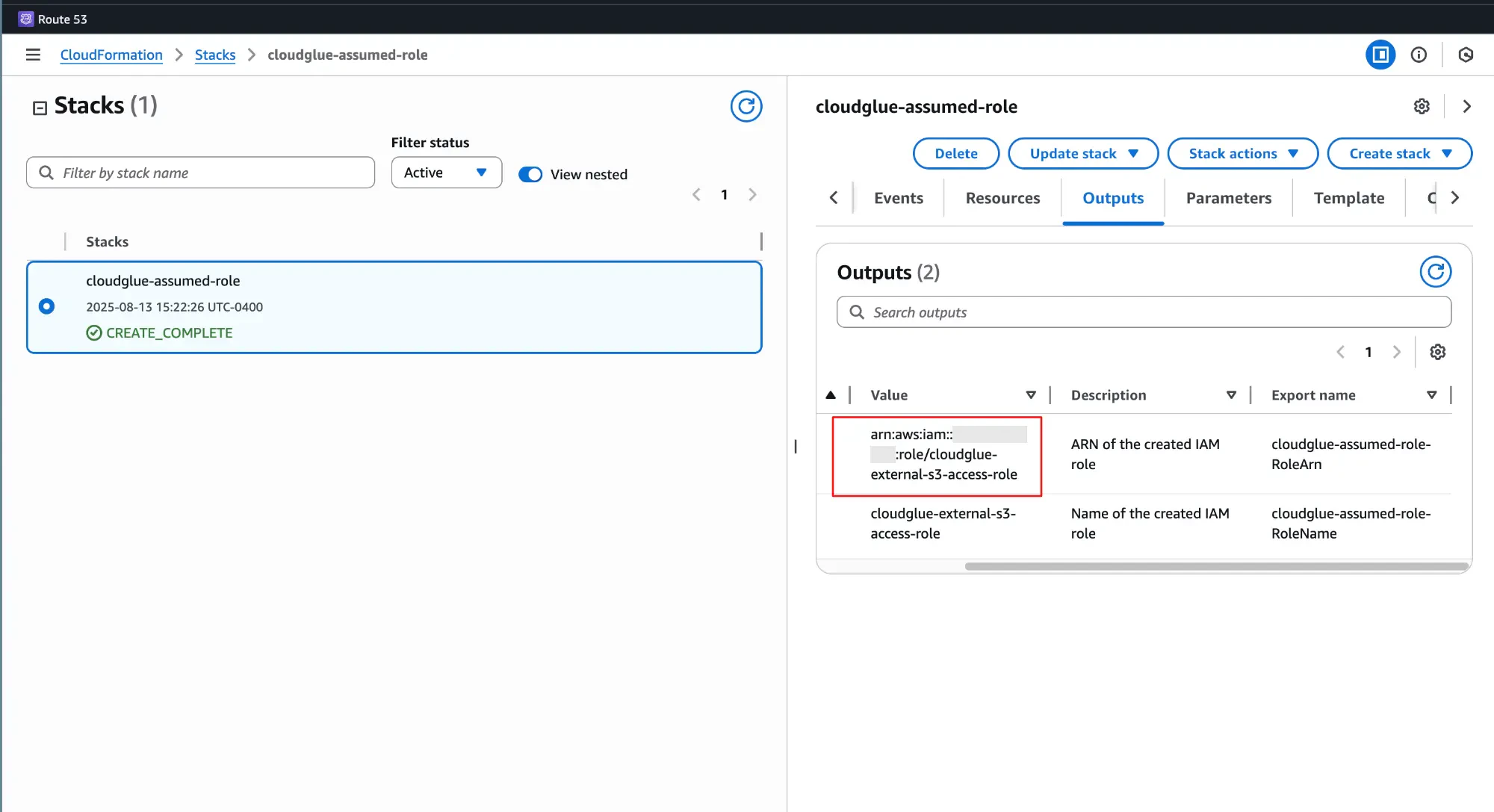
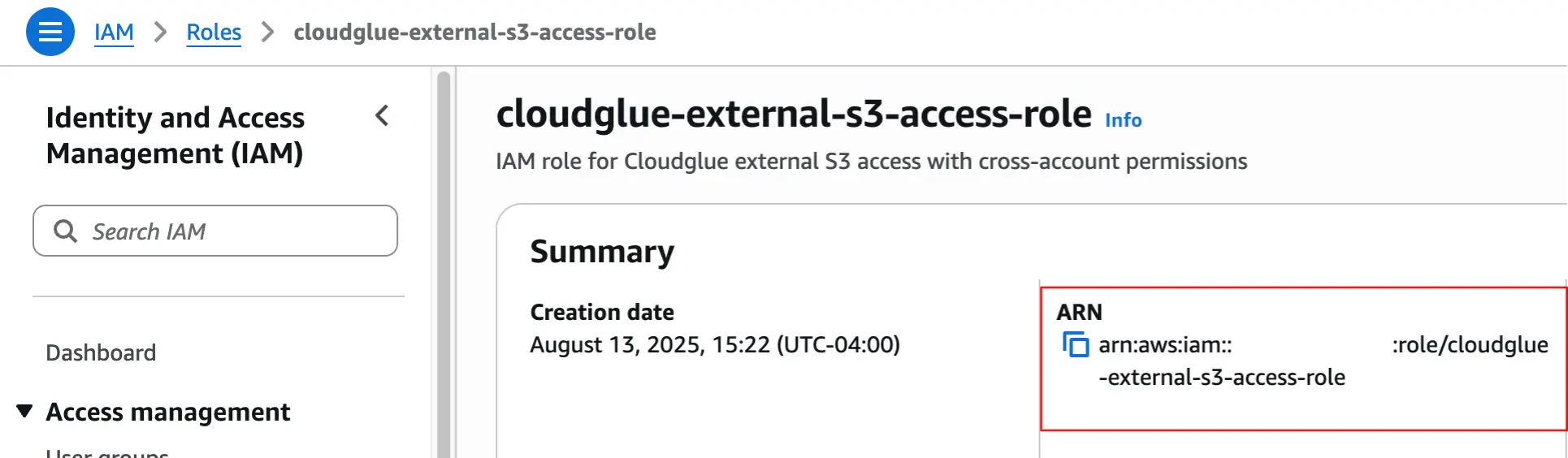 2. Navigate to [Cloudglue data connectors](https://app.cloudglue.dev/home/data-connectors), selecting the **AWS S3** card, and complete the form.
 Ready to set up your data connector? Visit [our
app](https://app.cloudglue.dev/home/data-connectors) to configure your S3
connector.
**Need help setting up your data connector?** Contact our team directly for
assistance with the setup process.
## Managing Access
You maintain full control over your data access. Remove this data connector by doing any of the following:
* **Revoke access** by deleting the IAM role.
* **Modify permissions** by updating the role policies.
* **Remove connection** by revoking the connector on our website.
Once removed:
* You cannot import new recordings into Cloudglue until you reconnect.
* Any recordings you previously imported will remain in Cloudglue. These can be viewed and deleted from [File Management](https://app.cloudglue.dev/home/files).
## Adding more buckets
If you need to add more buckets to the connector, you can do so by modifying the policy attached to the role.
All you need to do is add the new bucket to the `Resource` array.
```json theme={null}
{
"Action": [
"s3:GetObject",
"s3:ListBucket",
"s3:GetBucketLocation"
],
"Resource": [
"arn:aws:s3:::YOUR_BUCKET_NAME",
"arn:aws:s3:::YOUR_BUCKET_NAME/*",
// Add more buckets here
"arn:aws:s3:::YOUR_BUCKET_NAME2",
"arn:aws:s3:::YOUR_BUCKET_NAME2/*"
],
"Effect": "Allow",
"Sid": "AllowCrossAccountRoleReadAccess"
},
```
## How to use your S3 files with Cloudglue
To use S3 files, you can use the S3 URI for a file in your Cloudglue API requests. This would be prefixed with `s3://`.
Example:
```
s3:///
```
```bash theme={null}
curl --request POST \
--url https://api.cloudglue.dev/v1/describe \
--header 'Authorization: Bearer YOUR_API_KEY' \
--header 'Content-Type: application/json' \
--data '{
"url": "s3:///",
"enable_summary": true,
"enable_speech": true,
"enable_visual_scene_description": true,
"enable_scene_text": true
}'
```
## Security
We use AWS best practices with cross-account IAM roles. This approach:
* **Maintains your control** - You own and manage the role.
* **Follows AWS security patterns** - Uses standard cross-account role assumption.
* **Provides granular permissions** - Only grants the minimum access needed.
* **Easy to revoke** - Simply delete the role or modify permissions.
Ready to set up your data connector? Visit [our
app](https://app.cloudglue.dev/home/data-connectors) to configure your S3
connector.
**Need help setting up your data connector?** Contact our team directly for
assistance with the setup process.
## Managing Access
You maintain full control over your data access. Remove this data connector by doing any of the following:
* **Revoke access** by deleting the IAM role.
* **Modify permissions** by updating the role policies.
* **Remove connection** by revoking the connector on our website.
Once removed:
* You cannot import new recordings into Cloudglue until you reconnect.
* Any recordings you previously imported will remain in Cloudglue. These can be viewed and deleted from [File Management](https://app.cloudglue.dev/home/files).
## Adding more buckets
If you need to add more buckets to the connector, you can do so by modifying the policy attached to the role.
All you need to do is add the new bucket to the `Resource` array.
```json theme={null}
{
"Action": [
"s3:GetObject",
"s3:ListBucket",
"s3:GetBucketLocation"
],
"Resource": [
"arn:aws:s3:::YOUR_BUCKET_NAME",
"arn:aws:s3:::YOUR_BUCKET_NAME/*",
// Add more buckets here
"arn:aws:s3:::YOUR_BUCKET_NAME2",
"arn:aws:s3:::YOUR_BUCKET_NAME2/*"
],
"Effect": "Allow",
"Sid": "AllowCrossAccountRoleReadAccess"
},
```
## How to use your S3 files with Cloudglue
To use S3 files, you can use the S3 URI for a file in your Cloudglue API requests. This would be prefixed with `s3://`.
Example:
```
s3:///
```
```bash theme={null}
curl --request POST \
--url https://api.cloudglue.dev/v1/describe \
--header 'Authorization: Bearer YOUR_API_KEY' \
--header 'Content-Type: application/json' \
--data '{
"url": "s3:///",
"enable_summary": true,
"enable_speech": true,
"enable_visual_scene_description": true,
"enable_scene_text": true
}'
```
## Security
We use AWS best practices with cross-account IAM roles. This approach:
* **Maintains your control** - You own and manage the role.
* **Follows AWS security patterns** - Uses standard cross-account role assumption.
* **Provides granular permissions** - Only grants the minimum access needed.
* **Easy to revoke** - Simply delete the role or modify permissions.