> ## Documentation Index
> Fetch the complete documentation index at: https://docs.cloudglue.dev/llms.txt
> Use this file to discover all available pages before exploring further.
# Dropbox
> Connect your Dropbox files to Cloudglue
Connect your Dropbox account to use video files from Dropbox with Cloudglue APIs.
## Adding the Dropbox Data Connector
1. Navigate to the [Data Connectors page](https://app.cloudglue.dev/home/data-connectors) in the Cloudglue app.
2. Click the Dropbox data connector card. 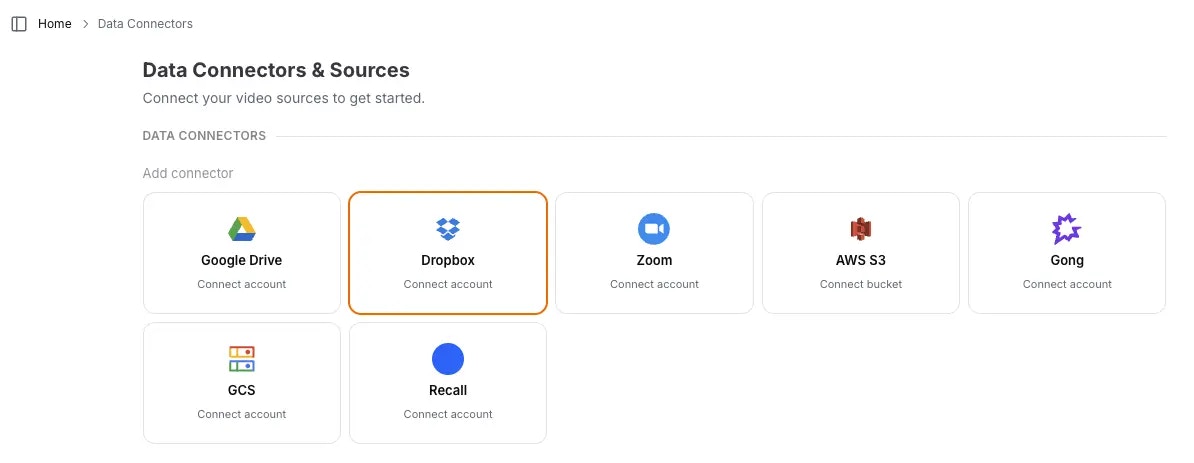 3. Follow the popup instructions to authorize Cloudglue access to your Dropbox account.
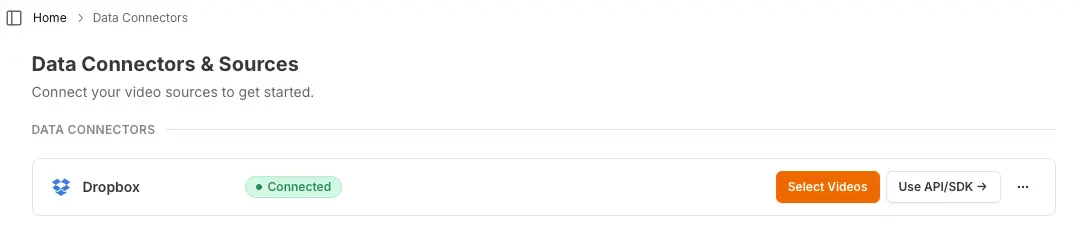
4. Verify the connection by checking for the **Connected** indicator on the card.
Ready to set up your Dropbox data connector? Visit [our
app](https://app.cloudglue.dev/home/data-connectors) to get started.
**Need help setting up your data connector?** Contact our team directly for
assistance with the setup process.
## Using Dropbox with Cloudglue
We offer a couple of ways to use your Dropbox files with Cloudglue.
### Option 1: Share Links via API
We support Dropbox file share links — the links you get from **Share → Copy link** on a file in Dropbox.
Example:
```
https://www.dropbox.com/scl/fi/SOME_ID/video.mp4?rlkey=SOME_KEY&st=SOME_TIME&dl=0
```
Share links work in two ways:
* **General endpoints** (describe, transcribe, extract, add to collection): the link is downloaded anonymously, so it must be publicly accessible. Login-gated or expired links return a `403` explaining the access problem.
* **Connector sync** (`POST /v1/data-connectors/{id}/sync` on a Dropbox connector): the link is resolved through your connected account's access, so it also works for files that require login, as long as the connected account can access them.
The same file pasted as different copies of the link (Dropbox regenerates the `st=` parameter each time a link is copied) deduplicates to a single Cloudglue file.
Share links must point to a single **file**. Folder share links
(`/scl/fo/...`) are not supported and return a `400`.
```bash theme={null}
curl --request POST \
--url https://api.cloudglue.dev/v1/describe \
--header 'Authorization: Bearer YOUR_API_KEY' \
--header 'Content-Type: application/json' \
--data '{
"url": "https://www.dropbox.com/scl/fi/SOME_ID/video.mp4?rlkey=SOME_KEY&st=SOME_TIME&dl=0",
"enable_summary": true,
"enable_speech": true,
"enable_visual_scene_description": true,
"enable_scene_text": true
}'
```
### Option 2: Custom URI via API
To use Dropbox files via our API that Cloudglue has access to, you can use the `dropbox://` prefix in your Cloudglue API requests. This is the URI format returned by [`GET /v1/data-connectors/{id}/files`](/api-reference/endpoint/data-connectors/list-files) — you can pass those URIs back verbatim.
Example:
```
dropbox:////
```
The path is matched tolerantly: leading-slash count and percent-encoding
variations of the same path (e.g. `dropbox:///folder name/file.mp4` vs
`dropbox://folder%20name/file.mp4`) resolve and deduplicate to the same file.
```bash theme={null}
curl --request POST \
--url https://api.cloudglue.dev/v1/describe \
--header 'Authorization: Bearer YOUR_API_KEY' \
--header 'Content-Type: application/json' \
--data '{
"url": "dropbox:////",
"enable_summary": true,
"enable_speech": true,
"enable_visual_scene_description": true,
"enable_scene_text": true
}'
```
## Browsing and filtering files
When [listing connector files](/api-reference/endpoint/data-connectors/list-files),
`title_search` matches file names and `from`/`to` filter by the file's
`client_modified` date (matched while paging — Dropbox has no native filters).
`path` (from a folder entry's `metadata`) drills into folders.
Because these filters are matched while paging, a filtered page can contain
fewer than `limit` items — even zero — while more matches remain. Keep
paginating until `next_page_token` is null rather than stopping at the first
short or empty page.
## Source metadata
When a Dropbox file is imported, Cloudglue captures the file's source metadata
onto the resulting file under `source_metadata`: name, paths, size,
client/server modification times, revision, content hash, and — for video —
`media_info` with duration and dimensions. The `source_metadata` field is
returned on the [file object](/api-reference/endpoint/files/get-id).
`media_info` is only captured at sync/lookup time: Dropbox's list endpoint
stopped returning media info, so items seen while browsing carry `null` there.
Public `dl.dropboxusercontent.com` URLs ingested without the connector carry
no source metadata at all (there's no API metadata for anonymous links).
[`GET /data-connectors/{id}/source-metadata`](/api-reference/endpoint/data-connectors/source-metadata)
previews a file's source metadata without importing it (works with
`dropbox://` paths and share links). URL-encode the `url` parameter — real
paths can contain spaces, `&`, `#`, or percent-encoded characters:
```bash theme={null}
curl --request GET \
--url 'https://api.cloudglue.dev/v1/data-connectors/YOUR_CONNECTOR_ID/source-metadata?url=dropbox%3A%2F%2Fvideos%2Fdemo.mp4' \
--header 'Authorization: Bearer YOUR_API_KEY'
# url = encodeURIComponent('dropbox://videos/demo.mp4')
```
## UI Importing for Testing
Use the Cloudglue integration UI to quickly import Dropbox files for testing your endpoints.
3. Follow the popup instructions to authorize Cloudglue access to your Dropbox account.
4. Verify the connection by checking for the **Connected** indicator on the card.
Ready to set up your Dropbox data connector? Visit [our
app](https://app.cloudglue.dev/home/data-connectors) to get started.
**Need help setting up your data connector?** Contact our team directly for
assistance with the setup process.
## Using Dropbox with Cloudglue
We offer a couple of ways to use your Dropbox files with Cloudglue.
### Option 1: Share Links via API
We support Dropbox file share links — the links you get from **Share → Copy link** on a file in Dropbox.
Example:
```
https://www.dropbox.com/scl/fi/SOME_ID/video.mp4?rlkey=SOME_KEY&st=SOME_TIME&dl=0
```
Share links work in two ways:
* **General endpoints** (describe, transcribe, extract, add to collection): the link is downloaded anonymously, so it must be publicly accessible. Login-gated or expired links return a `403` explaining the access problem.
* **Connector sync** (`POST /v1/data-connectors/{id}/sync` on a Dropbox connector): the link is resolved through your connected account's access, so it also works for files that require login, as long as the connected account can access them.
The same file pasted as different copies of the link (Dropbox regenerates the `st=` parameter each time a link is copied) deduplicates to a single Cloudglue file.
Share links must point to a single **file**. Folder share links
(`/scl/fo/...`) are not supported and return a `400`.
```bash theme={null}
curl --request POST \
--url https://api.cloudglue.dev/v1/describe \
--header 'Authorization: Bearer YOUR_API_KEY' \
--header 'Content-Type: application/json' \
--data '{
"url": "https://www.dropbox.com/scl/fi/SOME_ID/video.mp4?rlkey=SOME_KEY&st=SOME_TIME&dl=0",
"enable_summary": true,
"enable_speech": true,
"enable_visual_scene_description": true,
"enable_scene_text": true
}'
```
### Option 2: Custom URI via API
To use Dropbox files via our API that Cloudglue has access to, you can use the `dropbox://` prefix in your Cloudglue API requests. This is the URI format returned by [`GET /v1/data-connectors/{id}/files`](/api-reference/endpoint/data-connectors/list-files) — you can pass those URIs back verbatim.
Example:
```
dropbox:////
```
The path is matched tolerantly: leading-slash count and percent-encoding
variations of the same path (e.g. `dropbox:///folder name/file.mp4` vs
`dropbox://folder%20name/file.mp4`) resolve and deduplicate to the same file.
```bash theme={null}
curl --request POST \
--url https://api.cloudglue.dev/v1/describe \
--header 'Authorization: Bearer YOUR_API_KEY' \
--header 'Content-Type: application/json' \
--data '{
"url": "dropbox:////",
"enable_summary": true,
"enable_speech": true,
"enable_visual_scene_description": true,
"enable_scene_text": true
}'
```
## Browsing and filtering files
When [listing connector files](/api-reference/endpoint/data-connectors/list-files),
`title_search` matches file names and `from`/`to` filter by the file's
`client_modified` date (matched while paging — Dropbox has no native filters).
`path` (from a folder entry's `metadata`) drills into folders.
Because these filters are matched while paging, a filtered page can contain
fewer than `limit` items — even zero — while more matches remain. Keep
paginating until `next_page_token` is null rather than stopping at the first
short or empty page.
## Source metadata
When a Dropbox file is imported, Cloudglue captures the file's source metadata
onto the resulting file under `source_metadata`: name, paths, size,
client/server modification times, revision, content hash, and — for video —
`media_info` with duration and dimensions. The `source_metadata` field is
returned on the [file object](/api-reference/endpoint/files/get-id).
`media_info` is only captured at sync/lookup time: Dropbox's list endpoint
stopped returning media info, so items seen while browsing carry `null` there.
Public `dl.dropboxusercontent.com` URLs ingested without the connector carry
no source metadata at all (there's no API metadata for anonymous links).
[`GET /data-connectors/{id}/source-metadata`](/api-reference/endpoint/data-connectors/source-metadata)
previews a file's source metadata without importing it (works with
`dropbox://` paths and share links). URL-encode the `url` parameter — real
paths can contain spaces, `&`, `#`, or percent-encoded characters:
```bash theme={null}
curl --request GET \
--url 'https://api.cloudglue.dev/v1/data-connectors/YOUR_CONNECTOR_ID/source-metadata?url=dropbox%3A%2F%2Fvideos%2Fdemo.mp4' \
--header 'Authorization: Bearer YOUR_API_KEY'
# url = encodeURIComponent('dropbox://videos/demo.mp4')
```
## UI Importing for Testing
Use the Cloudglue integration UI to quickly import Dropbox files for testing your endpoints.
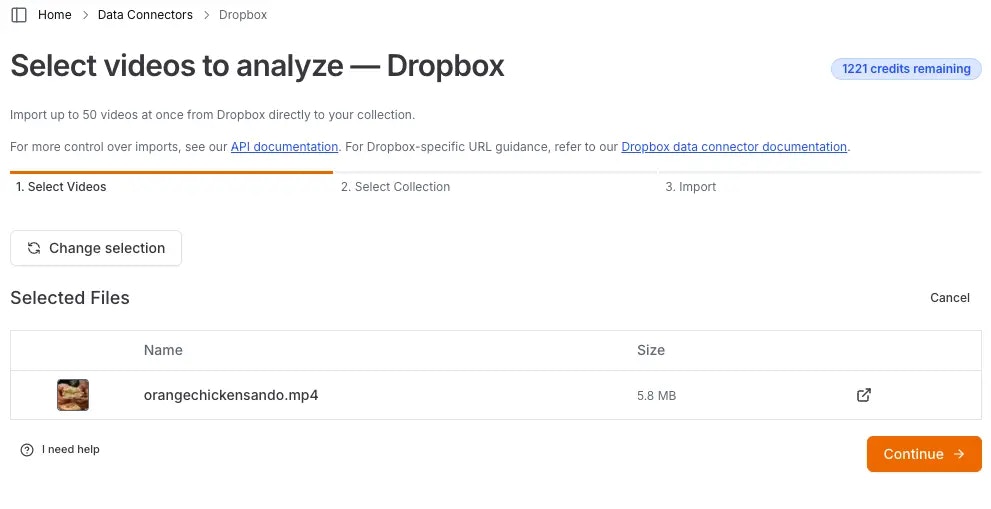 To access this page, visit [our app](https://app.cloudglue.dev/home/data-connectors) and click on **Select Videos** on the Dropbox connector.
 ## Managing Access
You maintain full control over your data access. Remove this data connector by doing any of the following:
* **Revoke access** by deleting the Dropbox app from your Dropbox account.
* **Remove connection** by revoking the connector on our website.
Once removed:
* You cannot import new videos from Dropbox until you reconnect.
* Any videos you previously imported will remain in Cloudglue. These can be viewed and deleted from [File Management](https://app.cloudglue.dev/home/files).
## Security
Cloudglue uses the [Dropbox app](https://www.dropbox.com/app-integrations) to access your files. This approach:
* **Maintains your control** - You own and manage the app.
* **Follows Dropbox security patterns** - Uses standard Dropbox app access.
* **Provides granular permissions** - Only grants the minimum access needed.
* **Easy to revoke** - Simply delete the app or modify permissions.
## Managing Access
You maintain full control over your data access. Remove this data connector by doing any of the following:
* **Revoke access** by deleting the Dropbox app from your Dropbox account.
* **Remove connection** by revoking the connector on our website.
Once removed:
* You cannot import new videos from Dropbox until you reconnect.
* Any videos you previously imported will remain in Cloudglue. These can be viewed and deleted from [File Management](https://app.cloudglue.dev/home/files).
## Security
Cloudglue uses the [Dropbox app](https://www.dropbox.com/app-integrations) to access your files. This approach:
* **Maintains your control** - You own and manage the app.
* **Follows Dropbox security patterns** - Uses standard Dropbox app access.
* **Provides granular permissions** - Only grants the minimum access needed.
* **Easy to revoke** - Simply delete the app or modify permissions.