> ## Documentation Index
> Fetch the complete documentation index at: https://docs.cloudglue.dev/llms.txt
> Use this file to discover all available pages before exploring further.
# Google Cloud Storage
> Connect your Google Cloud Storage buckets to Cloudglue
The Google Cloud Storage data connector allows you to connect any Google Cloud Storage bucket to Cloudglue, enabling you to use your Google Cloud Storage URIs directly with our endpoints without manually uploading files.
Google Cloud buckets inside of a **personal Google account** are not supported
with this data connector.
## How It Works
This connector creates a secure bridge between your Google Cloud Storage buckets and Cloudglue:
* **Direct Google Cloud Storage access** - We only access your files when you explicitly use them, and only the files you give access to.
* **No manual uploads** - Skip the process of manually uploading files to Cloudglue.
* **Google Cloud Storage URI support** - Use your existing Google Cloud Storage URIs directly with Cloudglue endpoints.
## Google Cloud Storage Setup
1. Go to the [Google Cloud Storage console](https://console.cloud.google.com/storage/browser).
2. Navigate to the bucket(s) you want to grant access to.
3. Navigate to the **Permissions** tab in the bucket.
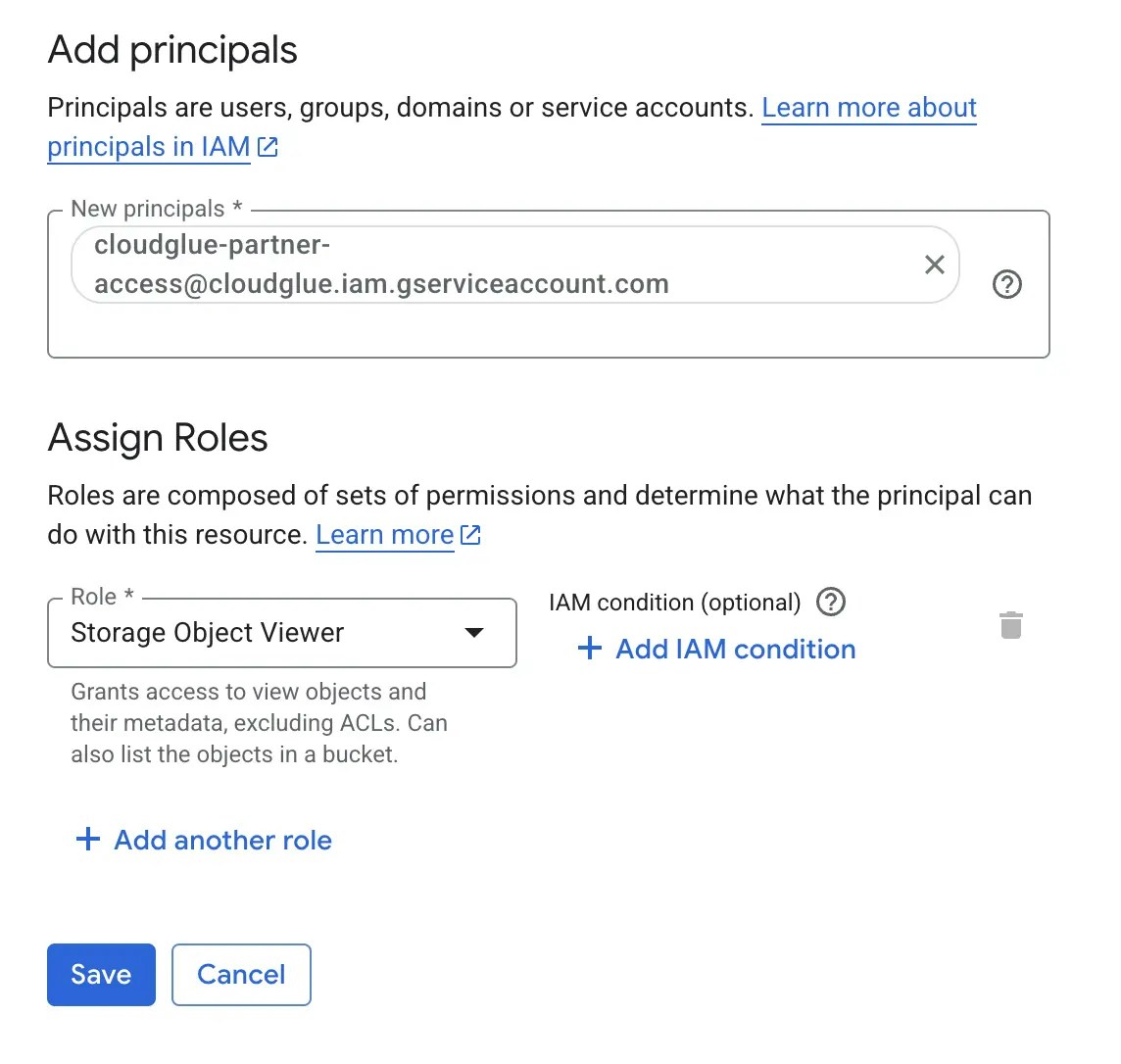
4. On the **Permissions** tab, select **View by principals**, then click **Grant Access**.
5. For the field **New principals**, enter the following service account email:
```
cloudglue-partner-access@cloudglue.iam.gserviceaccount.com
```
6. Assign the following role to the service account: **Storage Object Viewer**.
7. Click **Save**.
Example:
 ## Connecting to Cloudglue
1. **Enable the connector** on our web platform for Google Cloud Storage.
## Connecting to Cloudglue
1. **Enable the connector** on our web platform for Google Cloud Storage.
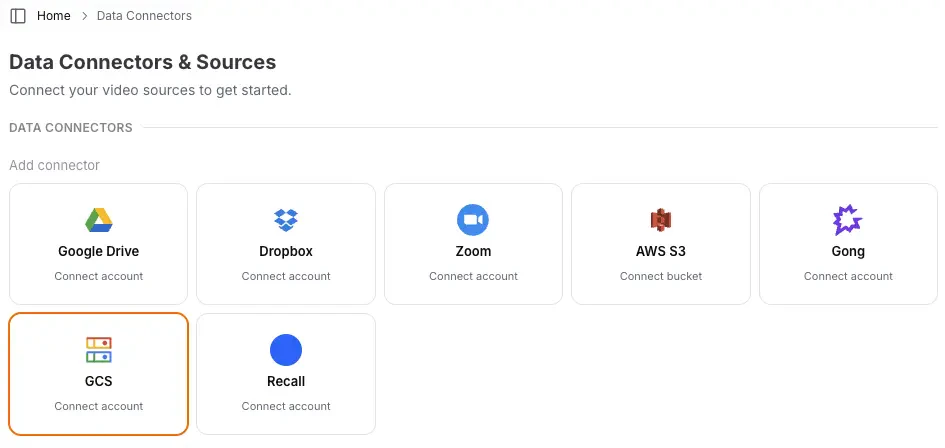 2. **Start using Google Cloud Storage URIs** directly with Cloudglue endpoints.
Ready to set up your data connector? Visit [our
app](https://app.cloudglue.dev/home/data-connectors) to configure your GCS
connector.
**Need help setting up your data connector?** Contact our team directly for
assistance with the setup process.
## How to use your Google Cloud Storage files with Cloudglue
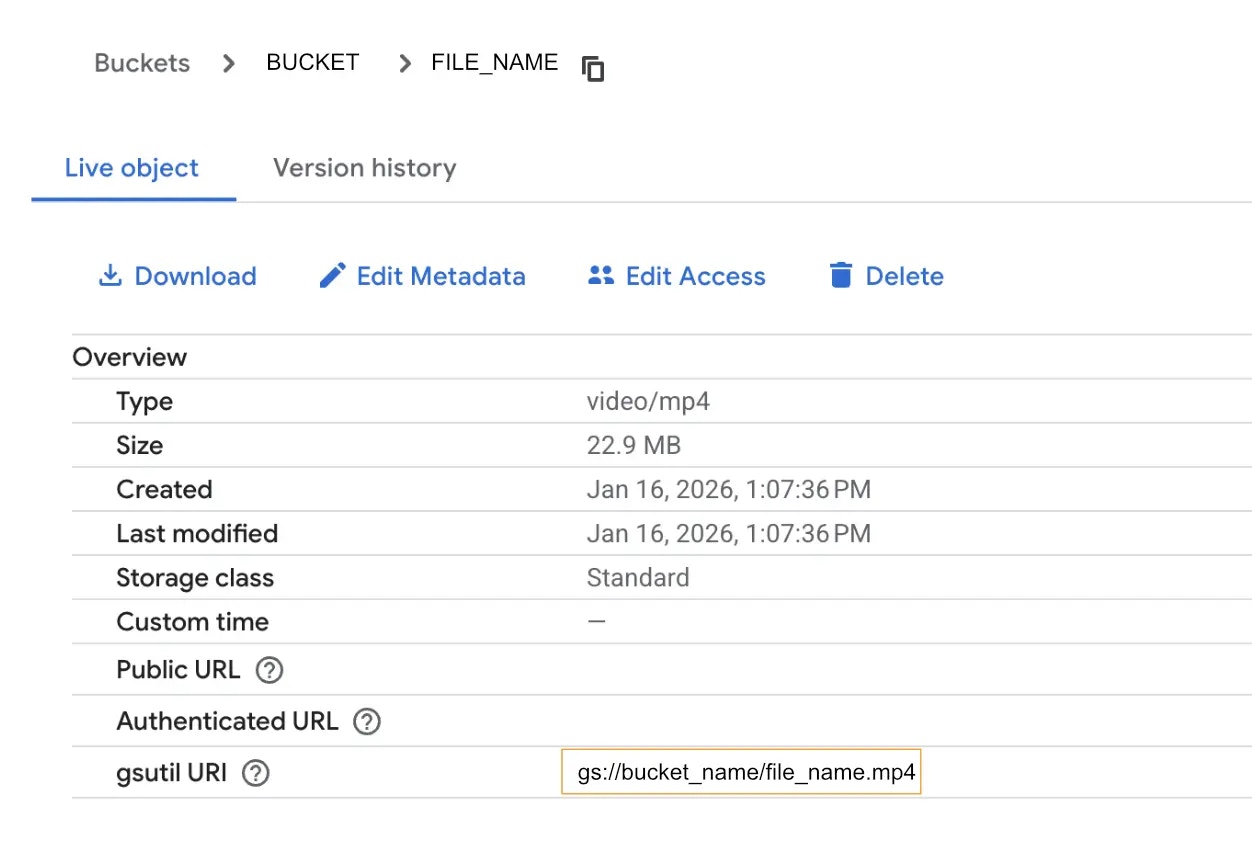
To use Google Cloud Storage files, you can use the Google Cloud Storage URI (also known as gsutil URI) for a file in your Cloudglue API requests. This would be prefixed with `gs://`.
Example:
```
gs:///
```
You can copy this from the Google Cloud Storage console for the file you want to use.
Example:
2. **Start using Google Cloud Storage URIs** directly with Cloudglue endpoints.
Ready to set up your data connector? Visit [our
app](https://app.cloudglue.dev/home/data-connectors) to configure your GCS
connector.
**Need help setting up your data connector?** Contact our team directly for
assistance with the setup process.
## How to use your Google Cloud Storage files with Cloudglue
To use Google Cloud Storage files, you can use the Google Cloud Storage URI (also known as gsutil URI) for a file in your Cloudglue API requests. This would be prefixed with `gs://`.
Example:
```
gs:///
```
You can copy this from the Google Cloud Storage console for the file you want to use.
Example:
 ```bash theme={null}
curl --request POST \
--url https://api.cloudglue.dev/v1/describe \
--header 'Authorization: Bearer YOUR_API_KEY' \
--header 'Content-Type: application/json' \
--data '{
"url": "gs:///",
"enable_summary": true,
"enable_speech": true,
"enable_visual_scene_description": true,
"enable_scene_text": true
}'
```
## Managing Access
You maintain full control over your data access. Remove this data connector by doing any of the following:
* **Revoke access** by removing bucket access for the service account in the Google Cloud console.
* **Remove connection** by revoking the connector on our website.
## Security
We use a special Google Cloud Storage service account to access your buckets. This service account is limited to read-only access and it can only view the specific buckets and files you authorize.
* **Provides granular permissions** - Only grants the minimum access needed.
* **Easy to revoke** - Simply remove bucket access for the service account.
```bash theme={null}
curl --request POST \
--url https://api.cloudglue.dev/v1/describe \
--header 'Authorization: Bearer YOUR_API_KEY' \
--header 'Content-Type: application/json' \
--data '{
"url": "gs:///",
"enable_summary": true,
"enable_speech": true,
"enable_visual_scene_description": true,
"enable_scene_text": true
}'
```
## Managing Access
You maintain full control over your data access. Remove this data connector by doing any of the following:
* **Revoke access** by removing bucket access for the service account in the Google Cloud console.
* **Remove connection** by revoking the connector on our website.
## Security
We use a special Google Cloud Storage service account to access your buckets. This service account is limited to read-only access and it can only view the specific buckets and files you authorize.
* **Provides granular permissions** - Only grants the minimum access needed.
* **Easy to revoke** - Simply remove bucket access for the service account.