> ## Documentation Index
> Fetch the complete documentation index at: https://docs.cloudglue.dev/llms.txt
> Use this file to discover all available pages before exploring further.
# Google Drive
> Connect your Google Drive files to Cloudglue
Connect your Google Drive account to use your media files with Cloudglue APIs.
## Adding the Google Drive Data Connector
1. Navigate to the [Data Connectors page](https://app.cloudglue.dev/home/data-connectors) in the Cloudglue app.
2. Click the Google Drive data connector card. 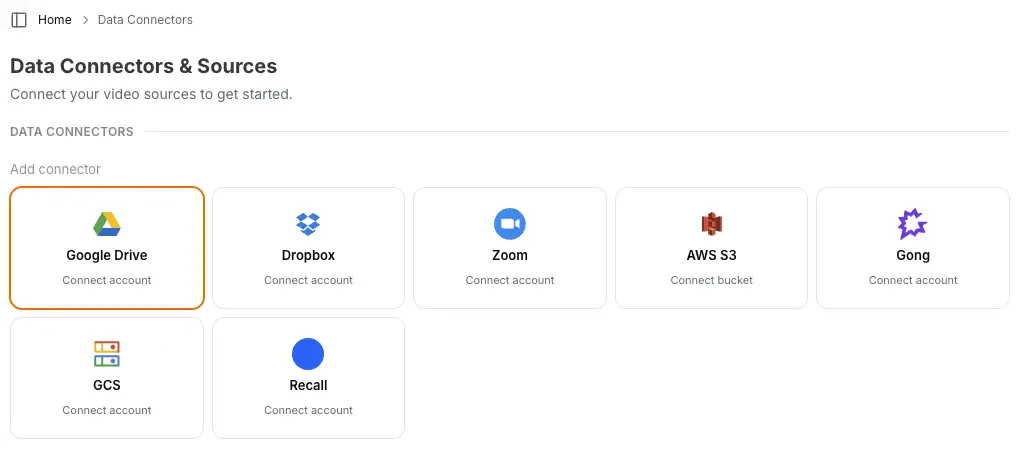 3. Follow the popup instructions to authorize Cloudglue access to your media.
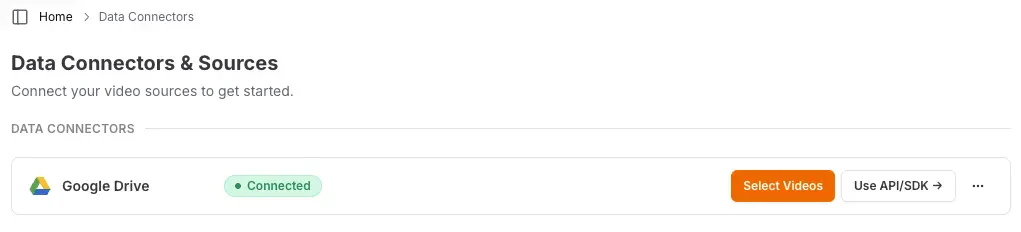
4. Verify the connection by checking for the **Connected** indicator on the card.
Ready to set up your Google Drive data connector? Visit [our
app](https://app.cloudglue.dev/home/data-connectors) to get started.
**Need help setting up your data connector?** Contact our team directly for
assistance with the setup process.
## Using Google Drive files with Cloudglue
To use Google Drive files, you can use the `gdrive://file/` prefix in your Cloudglue API requests, or paste a Google Drive file link directly — both forms are accepted everywhere and deduplicate to the same Cloudglue file.
Accepted formats:
```bash theme={null}
gdrive://file/
https://drive.google.com/file/d//view
https://drive.google.com/open?id=
```
Links must point to a single **file**. Google Drive folder links
(`drive.google.com/drive/folders/...`) are not supported and return a `400`.
Drive links resolve through your connected Google Drive account, so a
connector is required.
```bash theme={null}
curl --request POST \
--url https://api.cloudglue.dev/v1/describe \
--header 'Authorization: Bearer YOUR_API_KEY' \
--header 'Content-Type: application/json' \
--data '{
"url": "https://drive.google.com/file/d//view",
"enable_summary": true,
"enable_speech": true,
"enable_visual_scene_description": true,
"enable_scene_text": true
}'
```
## UI Importing for Testing
Use the Cloudglue integration UI to quickly import Google Drive files for testing your endpoints.
3. Follow the popup instructions to authorize Cloudglue access to your media.
4. Verify the connection by checking for the **Connected** indicator on the card.
Ready to set up your Google Drive data connector? Visit [our
app](https://app.cloudglue.dev/home/data-connectors) to get started.
**Need help setting up your data connector?** Contact our team directly for
assistance with the setup process.
## Using Google Drive files with Cloudglue
To use Google Drive files, you can use the `gdrive://file/` prefix in your Cloudglue API requests, or paste a Google Drive file link directly — both forms are accepted everywhere and deduplicate to the same Cloudglue file.
Accepted formats:
```bash theme={null}
gdrive://file/
https://drive.google.com/file/d//view
https://drive.google.com/open?id=
```
Links must point to a single **file**. Google Drive folder links
(`drive.google.com/drive/folders/...`) are not supported and return a `400`.
Drive links resolve through your connected Google Drive account, so a
connector is required.
```bash theme={null}
curl --request POST \
--url https://api.cloudglue.dev/v1/describe \
--header 'Authorization: Bearer YOUR_API_KEY' \
--header 'Content-Type: application/json' \
--data '{
"url": "https://drive.google.com/file/d//view",
"enable_summary": true,
"enable_speech": true,
"enable_visual_scene_description": true,
"enable_scene_text": true
}'
```
## UI Importing for Testing
Use the Cloudglue integration UI to quickly import Google Drive files for testing your endpoints.
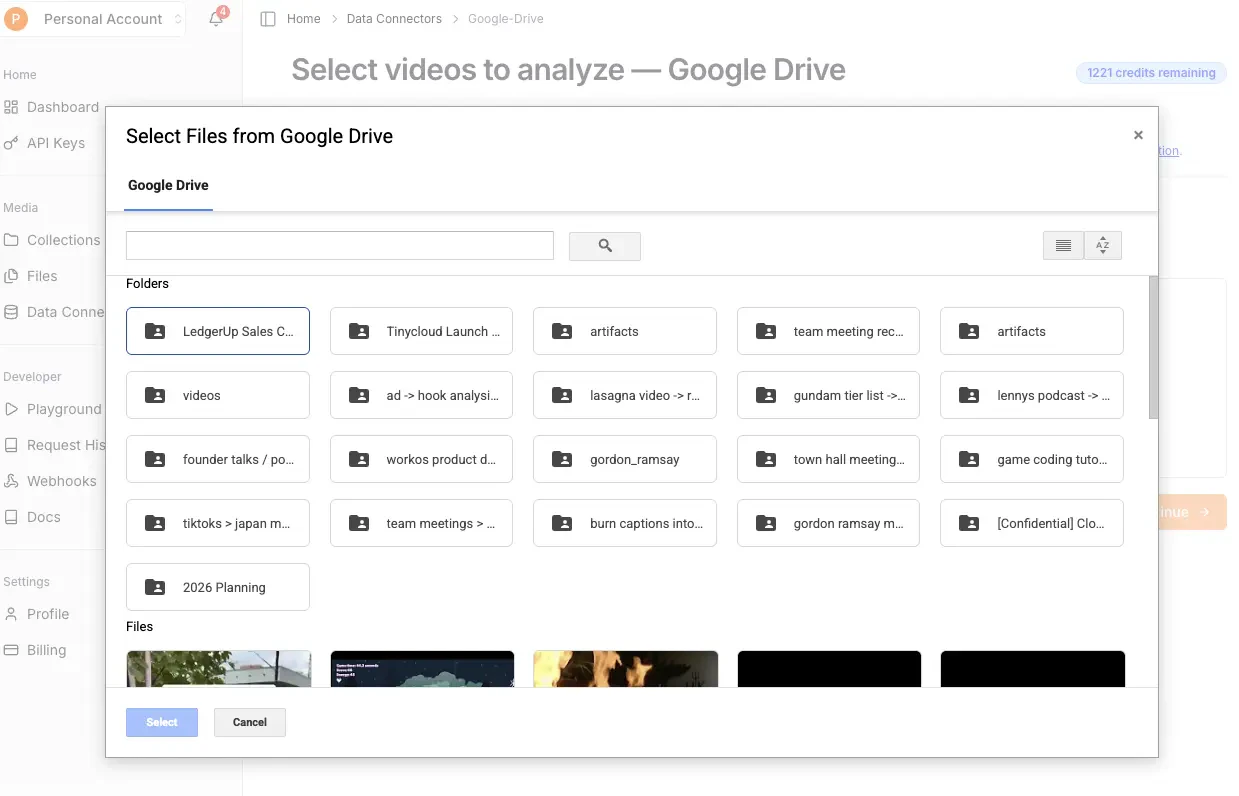 To access this page, visit [our app](https://app.cloudglue.dev/home/data-connectors) and click on **Select Videos** on the Google Drive connector.
 ## Managing Access
You maintain full control over your data access. Remove this data connector by doing the following:
* **Remove connection** by revoking the connector on our website.
Once removed:
* You cannot import new recordings into Cloudglue until you reconnect.
* Any recordings you previously imported will remain in Cloudglue. These can be viewed and deleted from [File Management](https://app.cloudglue.dev/home/files).
## Security
Cloudglue uses Google Drive Authentication to get limited access to your files. This approach:
* **Maintains your control** - You own and manage the connector.
* **Follows Google Drive security patterns** - Uses standard Google Drive authentication with minimum permissions.
* **Easy to revoke** - Simply delete the connector on our website.
## Managing Access
You maintain full control over your data access. Remove this data connector by doing the following:
* **Remove connection** by revoking the connector on our website.
Once removed:
* You cannot import new recordings into Cloudglue until you reconnect.
* Any recordings you previously imported will remain in Cloudglue. These can be viewed and deleted from [File Management](https://app.cloudglue.dev/home/files).
## Security
Cloudglue uses Google Drive Authentication to get limited access to your files. This approach:
* **Maintains your control** - You own and manage the connector.
* **Follows Google Drive security patterns** - Uses standard Google Drive authentication with minimum permissions.
* **Easy to revoke** - Simply delete the connector on our website.