> ## Documentation Index
> Fetch the complete documentation index at: https://docs.cloudglue.dev/llms.txt
> Use this file to discover all available pages before exploring further.
# How It Works
> Connect your data sources to add files to Cloudglue
Cloudglue connects directly to platforms where your videos already live.
Once connected, you can start adding videos to your Cloudglue workspace — building a structured context layer you can search, query, and build on.
## How It Works
Choose between adding files directly, or via one of our data connectors.
Connect cloud sources like Google Drive, Zoom, S3, and more.
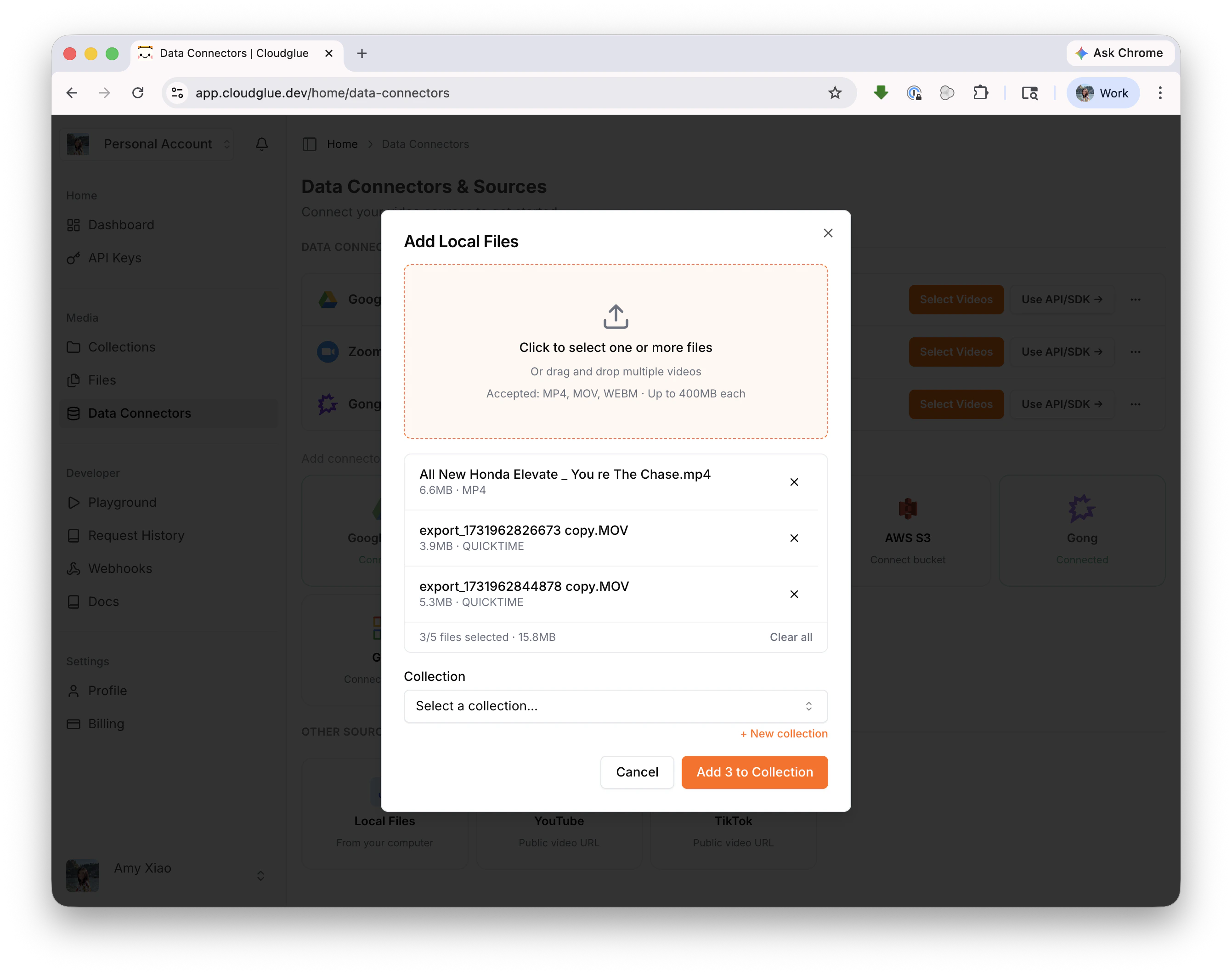
Add video files from your computer.
Paste Loom, YouTube, TikTok, or any HTTP URL.
### Data Connectors
Data connectors give Cloudglue secure access to your cloud video sources, making it easy to add many files at a time and optimized for large files.
Connect once, then add videos anytime.
#### Supported Data Connectors
We're continuously adding more:
Need a connector that's not listed? [Contact our
team](mailto:support@cloudglue.dev) to discuss adding support for your data
source.
#### 1. Select the connector you'd like to grant Cloudglue access to
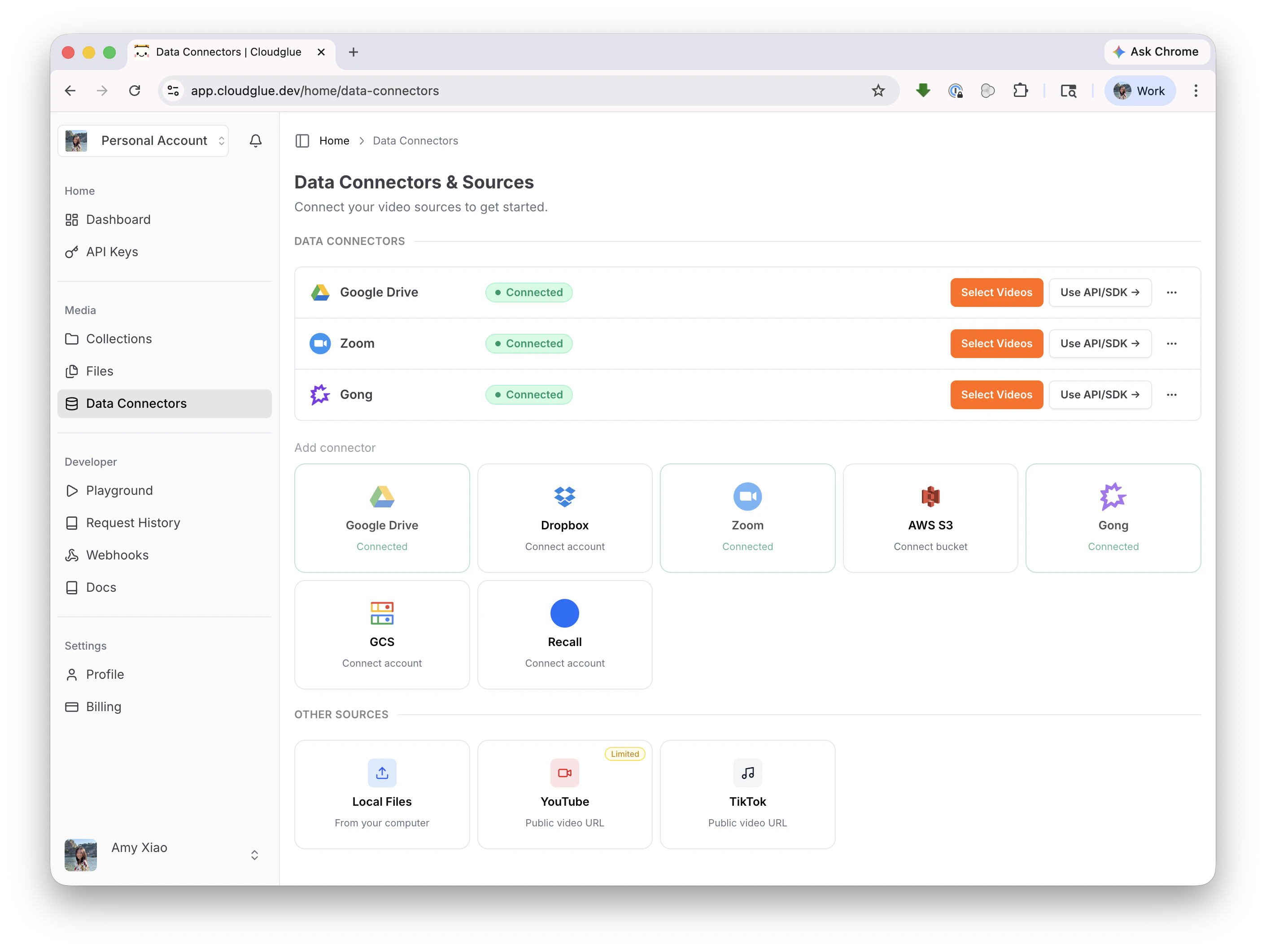 [Go to Data Connectors →](https://app.cloudglue.dev/home/data-connectors)
#### 2. Authenticate
Each connector has its own authentication steps. See the individual connector pages above for setup instructions.
#### 3. You're ready to add videos!
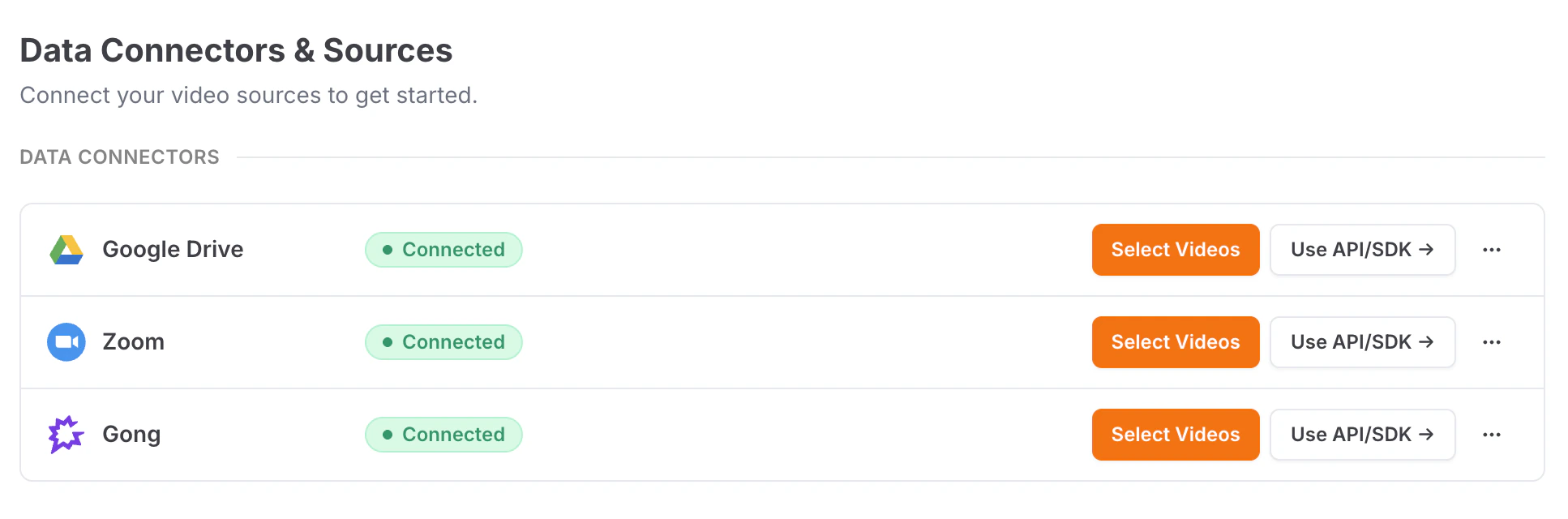
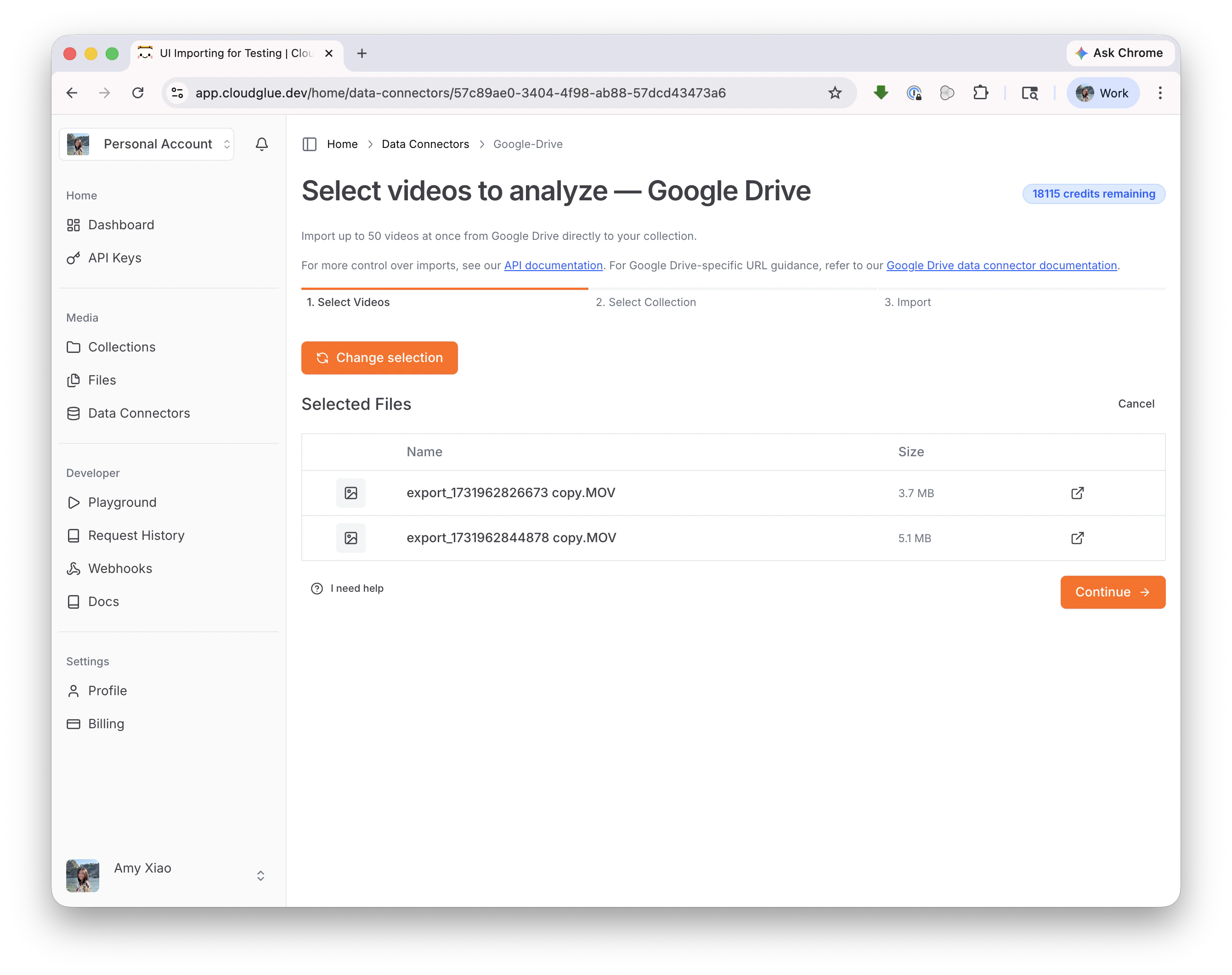
Once connected, you can add videos to a [collection](/core-concepts/entity-collection) in two ways:
Browse your connected source and pick which videos to add to a collection. Best for quick testing and one-off imports.
[Go to Data Connectors →](https://app.cloudglue.dev/home/data-connectors)
#### 2. Authenticate
Each connector has its own authentication steps. See the individual connector pages above for setup instructions.
#### 3. You're ready to add videos!
Once connected, you can add videos to a [collection](/core-concepts/entity-collection) in two ways:
Browse your connected source and pick which videos to add to a collection. Best for quick testing and one-off imports.
 Use connector URIs directly in any Cloudglue API call. Best for production pipelines and bulk imports.
```javascript theme={null}
const fileInfo = await client.collections.addVideoByUrl({
collectionId: 'my-collection-id',
url: 'gdrive://file/1a2b3c4d5e6f',
params: {},
});
```
Supported URI formats: `gdrive://file/` or `drive.google.com` file links · `s3:///` · `zoom://uuid/` or Zoom recording-detail links · `gong://call/` · `grain://recording/` · `dropbox://` or Dropbox file share links
See each connector's page for its full URI format and examples.
#### 4. Start working with your media
That's it! You can now start working with your videos — chat across them, search for specific moments, extract structured data, and more. The possibilities are endless. :)
```javascript theme={null}
// Ask a question across all videos in a collection
const response = await client.collections.chat({
collectionId: 'my-collection-id',
messages: [
{
role: 'user',
content: "What topics were discussed in this week's meetings?",
},
],
});
console.log(response.message.content);
```
Explore what you can do:
Find specific moments across your videos
Ask questions across your collections
Pull structured data from video content
Get rich descriptions of your videos
### Local Files
Add video files (MP4, MOV, WEBM) directly from your computer. [Learn more →](/data-connectors/local-files)
**Add on the dashboard:**
Use connector URIs directly in any Cloudglue API call. Best for production pipelines and bulk imports.
```javascript theme={null}
const fileInfo = await client.collections.addVideoByUrl({
collectionId: 'my-collection-id',
url: 'gdrive://file/1a2b3c4d5e6f',
params: {},
});
```
Supported URI formats: `gdrive://file/` or `drive.google.com` file links · `s3:///` · `zoom://uuid/` or Zoom recording-detail links · `gong://call/` · `grain://recording/` · `dropbox://` or Dropbox file share links
See each connector's page for its full URI format and examples.
#### 4. Start working with your media
That's it! You can now start working with your videos — chat across them, search for specific moments, extract structured data, and more. The possibilities are endless. :)
```javascript theme={null}
// Ask a question across all videos in a collection
const response = await client.collections.chat({
collectionId: 'my-collection-id',
messages: [
{
role: 'user',
content: "What topics were discussed in this week's meetings?",
},
],
});
console.log(response.message.content);
```
Explore what you can do:
Find specific moments across your videos
Ask questions across your collections
Pull structured data from video content
Get rich descriptions of your videos
### Local Files
Add video files (MP4, MOV, WEBM) directly from your computer. [Learn more →](/data-connectors/local-files)
**Add on the dashboard:**
 **Add with the API/SDK:**
```javascript theme={null}
const { data } = await client.files.uploadFile({ file });
await client.collections.addVideo(collectionId, data.id);
```
For bulk imports or larger files, use a [data connector](/data-connectors/overview#data-connectors) or the [API/SDK](/api-reference/endpoint/files/post) directly.
### Public URLs
You can also add videos by pasting a URL — no data connector setup needed.
#### HTTP URLs
Add any publicly accessible video via its URL. [Learn more →](/data-connectors/public-urls)
```javascript theme={null}
const result = await client.collections.addVideoByUrl({
collectionId: 'my-collection-id',
url: 'https://example.com/video.mp4',
params: {},
});
```
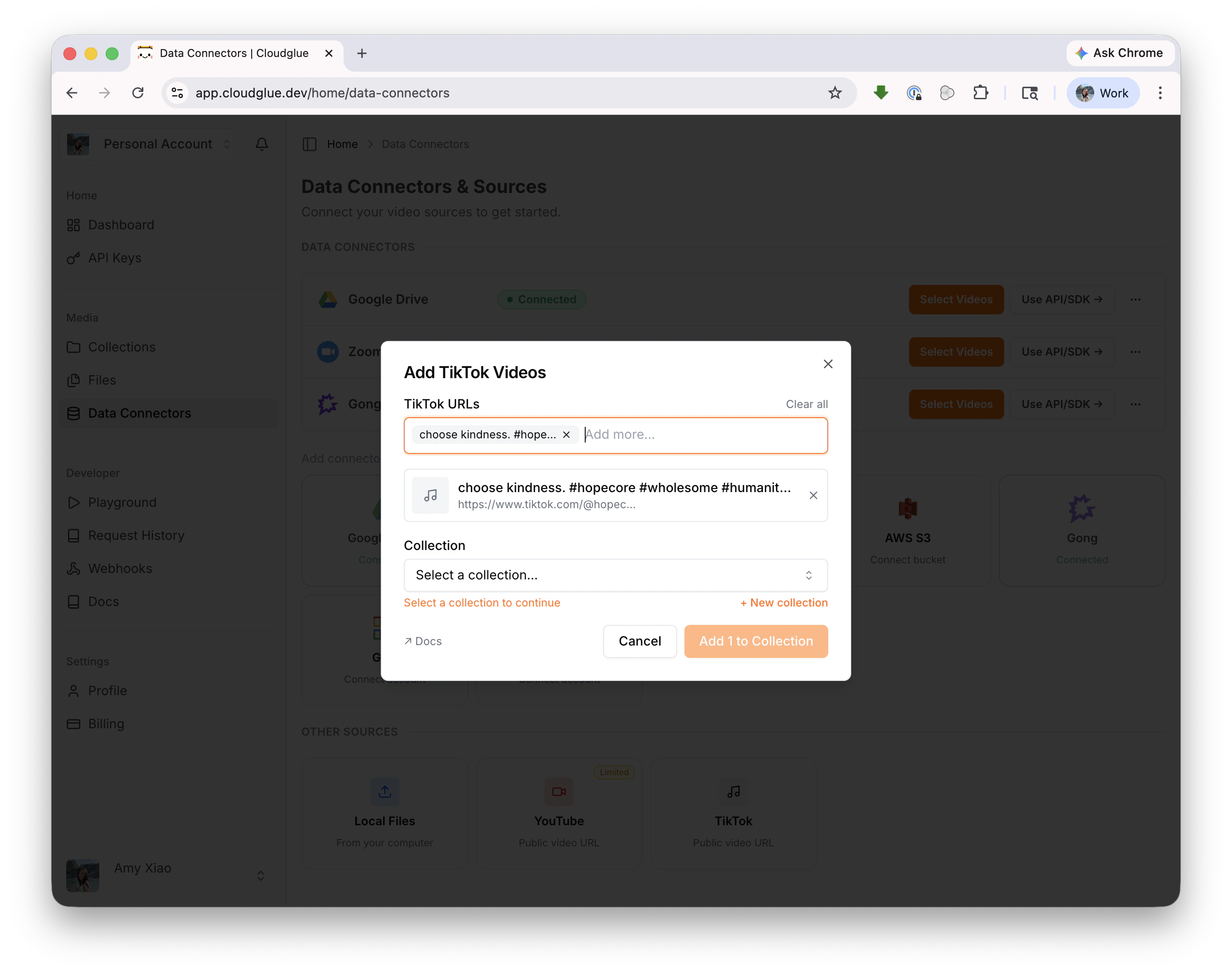
#### TikTok URLs
Paste public TikTok video URLs to add them to a collection. Full multimodal analysis (audio, visuals, and text). [Learn more →](/data-connectors/tiktok)
**Add with the API/SDK:**
```javascript theme={null}
const { data } = await client.files.uploadFile({ file });
await client.collections.addVideo(collectionId, data.id);
```
For bulk imports or larger files, use a [data connector](/data-connectors/overview#data-connectors) or the [API/SDK](/api-reference/endpoint/files/post) directly.
### Public URLs
You can also add videos by pasting a URL — no data connector setup needed.
#### HTTP URLs
Add any publicly accessible video via its URL. [Learn more →](/data-connectors/public-urls)
```javascript theme={null}
const result = await client.collections.addVideoByUrl({
collectionId: 'my-collection-id',
url: 'https://example.com/video.mp4',
params: {},
});
```
#### TikTok URLs
Paste public TikTok video URLs to add them to a collection. Full multimodal analysis (audio, visuals, and text). [Learn more →](/data-connectors/tiktok)
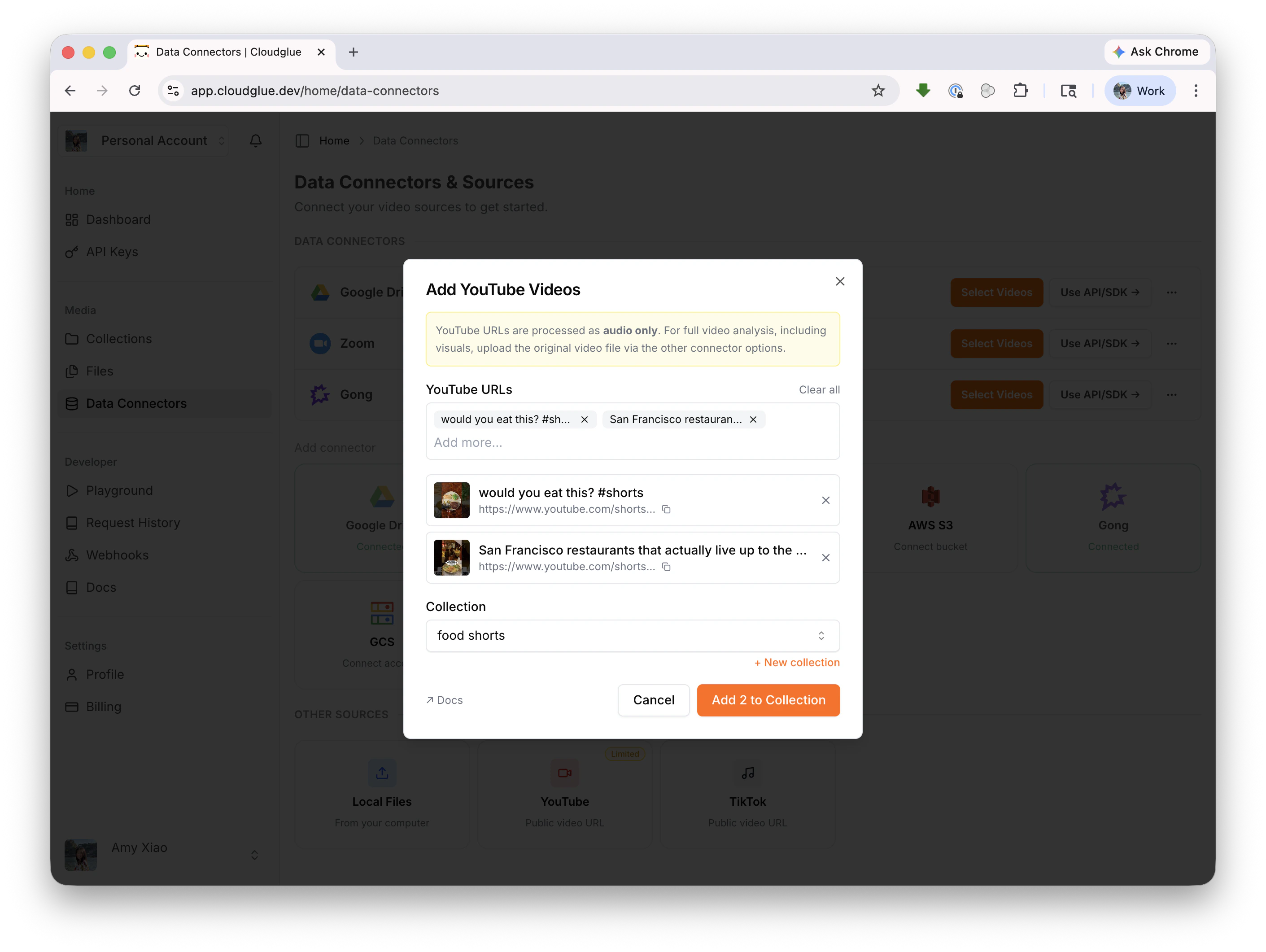
 #### YouTube URLs
Paste public YouTube video URLs to add them to a collection. [Learn more →](/data-connectors/youtube)
YouTube URLs are processed as **audio only**. For full video analysis
including visual descriptions, add the original video file instead.
#### YouTube URLs
Paste public YouTube video URLs to add them to a collection. [Learn more →](/data-connectors/youtube)
YouTube URLs are processed as **audio only**. For full video analysis
including visual descriptions, add the original video file instead.
 ***
#### Loom URLs
Paste public Loom share video URLs to add them to a collection. Full multimodal analysis (audio, visuals, and text). [Learn more →](/data-connectors/loom)
## Next Steps
Ready to get started? Dive into the guides for each method:
* **[Data Connectors](/data-connectors/overview#supported-data-connectors)** — Set up Google Drive, Zoom, S3, Gong, and more. Each guide walks you through authentication and your first import.
* **[Public URLs](/data-connectors/public-urls)** — Add videos from HTTP URLs, YouTube, TikTok, or Loom — just paste and go.
* **[Local Files](/data-connectors/local-files)** — Add video files directly from your computer, or use the API/SDK for programmatic uploads.
***
#### Loom URLs
Paste public Loom share video URLs to add them to a collection. Full multimodal analysis (audio, visuals, and text). [Learn more →](/data-connectors/loom)
## Next Steps
Ready to get started? Dive into the guides for each method:
* **[Data Connectors](/data-connectors/overview#supported-data-connectors)** — Set up Google Drive, Zoom, S3, Gong, and more. Each guide walks you through authentication and your first import.
* **[Public URLs](/data-connectors/public-urls)** — Add videos from HTTP URLs, YouTube, TikTok, or Loom — just paste and go.
* **[Local Files](/data-connectors/local-files)** — Add video files directly from your computer, or use the API/SDK for programmatic uploads.