> ## Documentation Index
> Fetch the complete documentation index at: https://docs.cloudglue.dev/llms.txt
> Use this file to discover all available pages before exploring further.
# Recall.ai
> Connect your Recall.ai meeting recordings to Cloudglue
Connect your Recall.ai account to use your media recordings with Cloudglue APIs.
## Adding the Recall Data Connector
1. Navigate to the [Data Connectors page](https://app.cloudglue.dev/home/data-connectors) in the Cloudglue app.
2. Click the Recall data connector card. 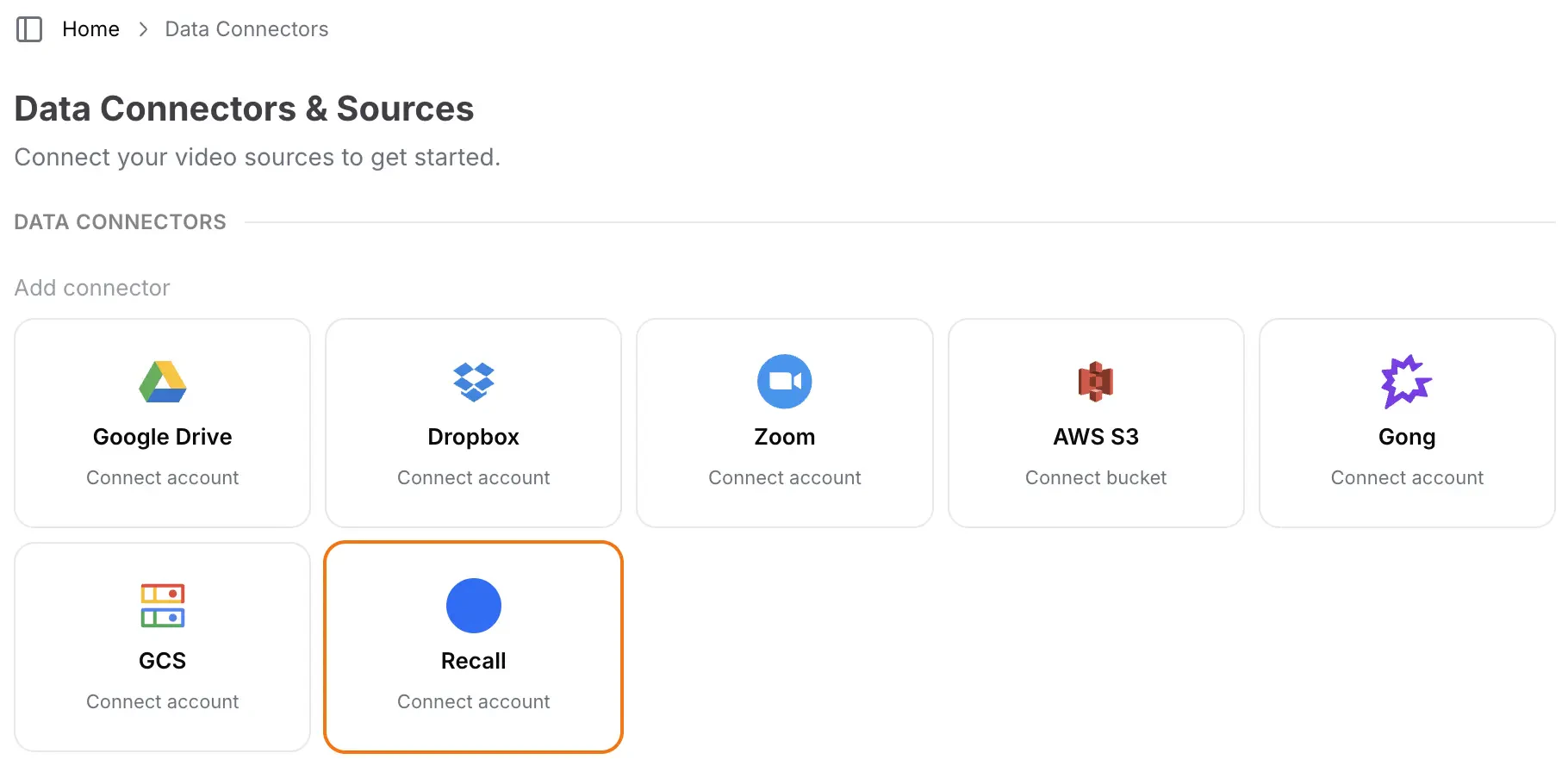 3. Follow the popup instructions to authorize Cloudglue access to your recordings.
4. Verify the connection by checking for the **Connected** indicator on the card.
Ready to set up your Recall data connector? Visit [our
app](https://app.cloudglue.dev/home/data-connectors) to get started.
**Need help setting up your data connector?** Contact our team directly for
assistance with the setup process.
## Using Recall with Cloudglue
To use Recall.ai recordings with Cloudglue, you can use the `recall://recording/{recording_id}` prefix in your Cloudglue API requests.
Example:
```bash theme={null}
recall://recording/1234567890
```
**Example API Request to get [a multimodal description](/api-reference/endpoint/describe/post) of a recording:**
```bash theme={null}
curl --request POST \
--url https://api.cloudglue.dev/v1/describe \
--header 'Authorization: Bearer YOUR_API_KEY' \
--header 'Content-Type: application/json' \
--data '{
"url": "recall://recording/1234567890",
"enable_summary": true,
"enable_speech": true,
"enable_visual_scene_description": true,
"enable_scene_text": true
}'
```
## UI Importing for Testing
Use the Cloudglue integration UI to quickly import Recall files for testing your endpoints.
3. Follow the popup instructions to authorize Cloudglue access to your recordings.
4. Verify the connection by checking for the **Connected** indicator on the card.
Ready to set up your Recall data connector? Visit [our
app](https://app.cloudglue.dev/home/data-connectors) to get started.
**Need help setting up your data connector?** Contact our team directly for
assistance with the setup process.
## Using Recall with Cloudglue
To use Recall.ai recordings with Cloudglue, you can use the `recall://recording/{recording_id}` prefix in your Cloudglue API requests.
Example:
```bash theme={null}
recall://recording/1234567890
```
**Example API Request to get [a multimodal description](/api-reference/endpoint/describe/post) of a recording:**
```bash theme={null}
curl --request POST \
--url https://api.cloudglue.dev/v1/describe \
--header 'Authorization: Bearer YOUR_API_KEY' \
--header 'Content-Type: application/json' \
--data '{
"url": "recall://recording/1234567890",
"enable_summary": true,
"enable_speech": true,
"enable_visual_scene_description": true,
"enable_scene_text": true
}'
```
## UI Importing for Testing
Use the Cloudglue integration UI to quickly import Recall files for testing your endpoints.
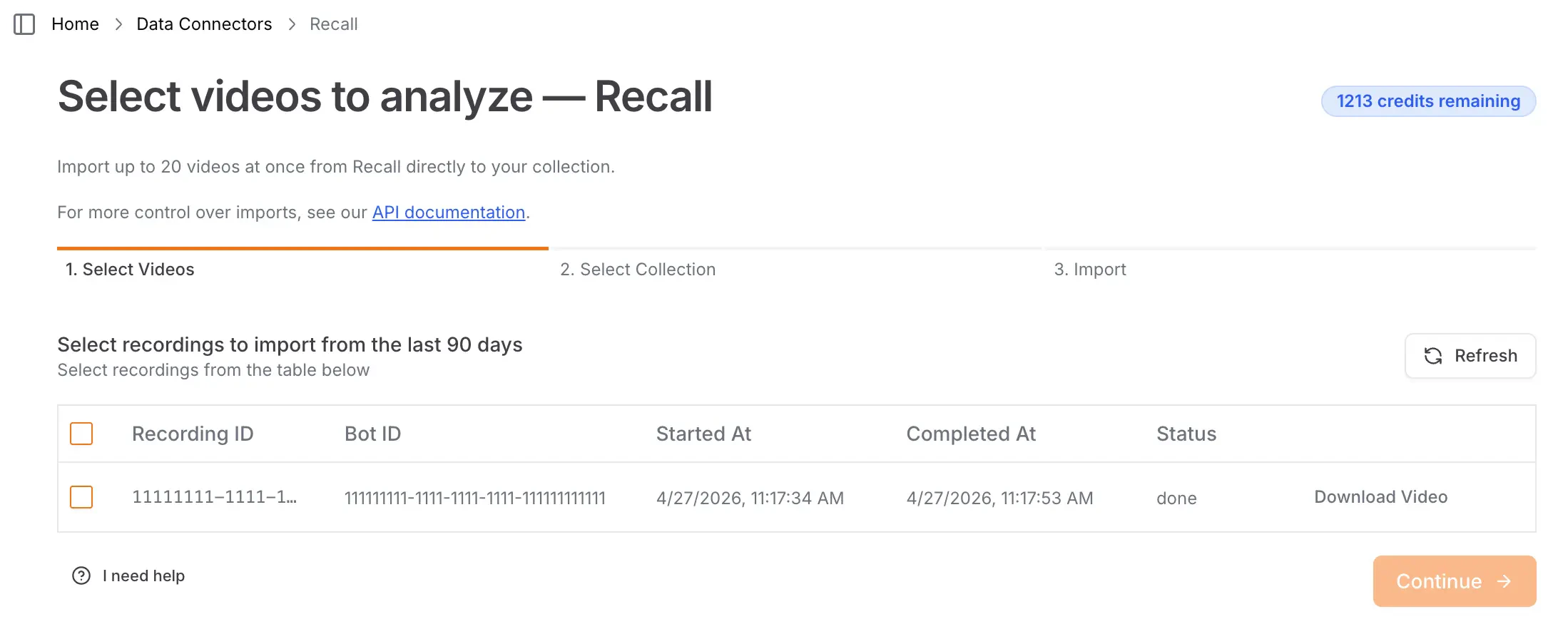 To access this page, visit [our app](https://app.cloudglue.dev/home/data-connectors) and click on **Select Videos** on the Recall connector.
  ## Managing Access
You maintain full control over your data access. To remove the Recall Data Connector, visit the [Data Connectors page](https://app.cloudglue.dev/home/data-connectors) and click **Disconnect** under Recall.
Once removed:
* You cannot import new recordings into Cloudglue until you reconnect.
* Any recordings you previously imported will remain in Cloudglue. These can be viewed and deleted from [File Management](https://app.cloudglue.dev/home/files).
## Security
Cloudglue uses your Recall.ai API key to securely access your recordings. This approach:
* **Maintains your control** - You own and manage the connector. Revoke the API Key at any time to stop Cloudglue from accessing your recordings.
## Managing Access
You maintain full control over your data access. To remove the Recall Data Connector, visit the [Data Connectors page](https://app.cloudglue.dev/home/data-connectors) and click **Disconnect** under Recall.
Once removed:
* You cannot import new recordings into Cloudglue until you reconnect.
* Any recordings you previously imported will remain in Cloudglue. These can be viewed and deleted from [File Management](https://app.cloudglue.dev/home/files).
## Security
Cloudglue uses your Recall.ai API key to securely access your recordings. This approach:
* **Maintains your control** - You own and manage the connector. Revoke the API Key at any time to stop Cloudglue from accessing your recordings.