> ## Documentation Index
> Fetch the complete documentation index at: https://docs.cloudglue.dev/llms.txt
> Use this file to discover all available pages before exploring further.
# Zoom
> Connect your Zoom recordings to Cloudglue
Connect your Zoom account to use your cloud meeting recordings with Cloudglue APIs.
## Adding the Zoom Data Connector
1. Navigate to the [Data Connectors page](https://app.cloudglue.dev/home/data-connectors) in the Cloudglue app.
2. Click the Zoom data connector card. 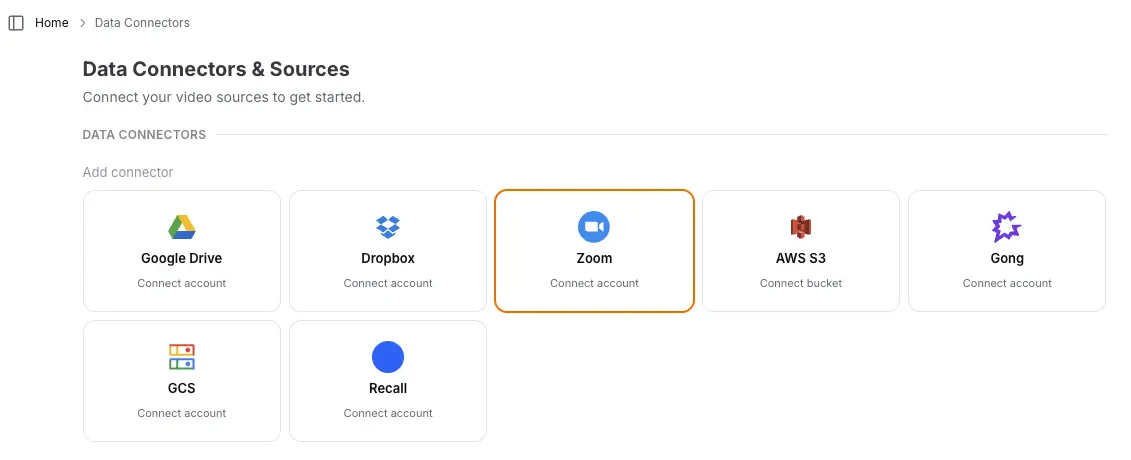 3. Follow the popup instructions to authorize Cloudglue access to your recordings.
4. Verify the connection by checking for the **Connected** indicator on the card.
Ready to set up your Zoom data connector? Visit [our
app](https://app.cloudglue.dev/home/data-connectors) to get started.
**Need help setting up your data connector?** Contact our team directly for
assistance with the setup process.
## Using Zoom with Cloudglue
Cloudglue accepts multiple URL formats for referencing Zoom recordings. Zoom has two meeting identification concepts:
* **Meeting ID** - A numeric identifier for a meeting (can have multiple instances if recurring).
* **Meeting Instance UUID** - A unique identifier for a specific meeting occurrence. Cloudglue uses a [URL encoded](https://developer.mozilla.org/en-US/docs/Glossary/Percent-encoding) UUID.
### Supported URL Formats
Retrieves the recording from a specific meeting instance. If multiple recordings exist, Cloudglue uses the longest one.
**Cloudglue URL format:**
> **Note:** When using a meeting instance UUID, you must URL-encode it (for example, using `encodeURIComponent()` in JavaScript). The example below shows the encoded form on the left, and the code used to generate it on the right.
```bash theme={null}
zoom://uuid/QFwZYEreTl2e6MBFSslXjQ%3D%3D # zoom://uuid/${encodeURIComponent("QFwZYEreTl2e6MBFSslXjQ==")}
```
[**Example API Request to get a multimodal description of a recording:**](/api-reference/endpoint/describe/post)
```bash theme={null}
curl --request POST \
--url https://api.cloudglue.dev/v1/describe \
--header 'Authorization: Bearer YOUR_API_KEY' \
--header 'Content-Type: application/json' \
--data '{
"url": "zoom://uuid/QFwZYEreTl2e6MBFSslXjQ%3D%3D",
"enable_summary": true,
"enable_speech": true,
"enable_visual_scene_description": true,
"enable_scene_text": true
}'
```
Retrieves the recording from the most recent instance. If multiple recordings exist in that instance, retrieves the longest one.
**Cloudglue URL format:**
```bash theme={null}
zoom://id/81586198865
```
[**Example API Request to get a multimodal description of a recording:**](/api-reference/endpoint/describe/post)
```bash theme={null}
curl --request POST \
--url https://api.cloudglue.dev/v1/describe \
--header 'Authorization: Bearer YOUR_API_KEY' \
--header 'Content-Type: application/json' \
--data '{
"url": "zoom://id/81586198865",
"enable_summary": true,
"enable_speech": true,
"enable_visual_scene_description": true,
"enable_scene_text": true
}'
```
You can also paste Zoom web links directly:
* **Recording detail links** (recommended): `https://zoom.us/recording/detail?meeting_id=` — the URL in your browser when viewing a recording in the Zoom web portal. Works reliably for recordings of any age.
* **Meeting join links**: `https://zoom.us/j/` (or `/s/`) — resolves to the latest recording of that meeting.
* **Recording share links** (best effort): `https://*.zoom.us/rec/share/` — resolved by matching against your account's cloud recordings. Zoom often generates a *new* share token each time a link is copied, so a freshly copied link may not be locatable; if that happens, use the recording detail link instead. Only recordings owned by the connected Zoom user can be found this way.
`rec/play` links are not supported and return a `400` with guidance.
Regardless of which URL format you provide, Cloudglue will automatically
normalize it to a meeting instance UUID for processing, and different
spellings of the same recording deduplicate to one Cloudglue file.
Find your meeting instance UUID by going to Zoom Web -> Recordings &
Transcripts, then click on a recording to see the detail page, your video's
UUID is in the browser URL query parameters `meeting_id=your-video-uuid`. You
can also paste that detail-page URL directly — it's the most reliable link
form.
## UI Importing for Testing
Use the Cloudglue integration UI to quickly import Zoom files for testing your endpoints.
This integration UI only supports importing files from the Zoom account that
you connected to Cloudglue. This will not show recordings for the organization
that you are a member of. If you need to use files from the organization, you
can use the API to import the files.
3. Follow the popup instructions to authorize Cloudglue access to your recordings.
4. Verify the connection by checking for the **Connected** indicator on the card.
Ready to set up your Zoom data connector? Visit [our
app](https://app.cloudglue.dev/home/data-connectors) to get started.
**Need help setting up your data connector?** Contact our team directly for
assistance with the setup process.
## Using Zoom with Cloudglue
Cloudglue accepts multiple URL formats for referencing Zoom recordings. Zoom has two meeting identification concepts:
* **Meeting ID** - A numeric identifier for a meeting (can have multiple instances if recurring).
* **Meeting Instance UUID** - A unique identifier for a specific meeting occurrence. Cloudglue uses a [URL encoded](https://developer.mozilla.org/en-US/docs/Glossary/Percent-encoding) UUID.
### Supported URL Formats
Retrieves the recording from a specific meeting instance. If multiple recordings exist, Cloudglue uses the longest one.
**Cloudglue URL format:**
> **Note:** When using a meeting instance UUID, you must URL-encode it (for example, using `encodeURIComponent()` in JavaScript). The example below shows the encoded form on the left, and the code used to generate it on the right.
```bash theme={null}
zoom://uuid/QFwZYEreTl2e6MBFSslXjQ%3D%3D # zoom://uuid/${encodeURIComponent("QFwZYEreTl2e6MBFSslXjQ==")}
```
[**Example API Request to get a multimodal description of a recording:**](/api-reference/endpoint/describe/post)
```bash theme={null}
curl --request POST \
--url https://api.cloudglue.dev/v1/describe \
--header 'Authorization: Bearer YOUR_API_KEY' \
--header 'Content-Type: application/json' \
--data '{
"url": "zoom://uuid/QFwZYEreTl2e6MBFSslXjQ%3D%3D",
"enable_summary": true,
"enable_speech": true,
"enable_visual_scene_description": true,
"enable_scene_text": true
}'
```
Retrieves the recording from the most recent instance. If multiple recordings exist in that instance, retrieves the longest one.
**Cloudglue URL format:**
```bash theme={null}
zoom://id/81586198865
```
[**Example API Request to get a multimodal description of a recording:**](/api-reference/endpoint/describe/post)
```bash theme={null}
curl --request POST \
--url https://api.cloudglue.dev/v1/describe \
--header 'Authorization: Bearer YOUR_API_KEY' \
--header 'Content-Type: application/json' \
--data '{
"url": "zoom://id/81586198865",
"enable_summary": true,
"enable_speech": true,
"enable_visual_scene_description": true,
"enable_scene_text": true
}'
```
You can also paste Zoom web links directly:
* **Recording detail links** (recommended): `https://zoom.us/recording/detail?meeting_id=` — the URL in your browser when viewing a recording in the Zoom web portal. Works reliably for recordings of any age.
* **Meeting join links**: `https://zoom.us/j/` (or `/s/`) — resolves to the latest recording of that meeting.
* **Recording share links** (best effort): `https://*.zoom.us/rec/share/` — resolved by matching against your account's cloud recordings. Zoom often generates a *new* share token each time a link is copied, so a freshly copied link may not be locatable; if that happens, use the recording detail link instead. Only recordings owned by the connected Zoom user can be found this way.
`rec/play` links are not supported and return a `400` with guidance.
Regardless of which URL format you provide, Cloudglue will automatically
normalize it to a meeting instance UUID for processing, and different
spellings of the same recording deduplicate to one Cloudglue file.
Find your meeting instance UUID by going to Zoom Web -> Recordings &
Transcripts, then click on a recording to see the detail page, your video's
UUID is in the browser URL query parameters `meeting_id=your-video-uuid`. You
can also paste that detail-page URL directly — it's the most reliable link
form.
## UI Importing for Testing
Use the Cloudglue integration UI to quickly import Zoom files for testing your endpoints.
This integration UI only supports importing files from the Zoom account that
you connected to Cloudglue. This will not show recordings for the organization
that you are a member of. If you need to use files from the organization, you
can use the API to import the files.
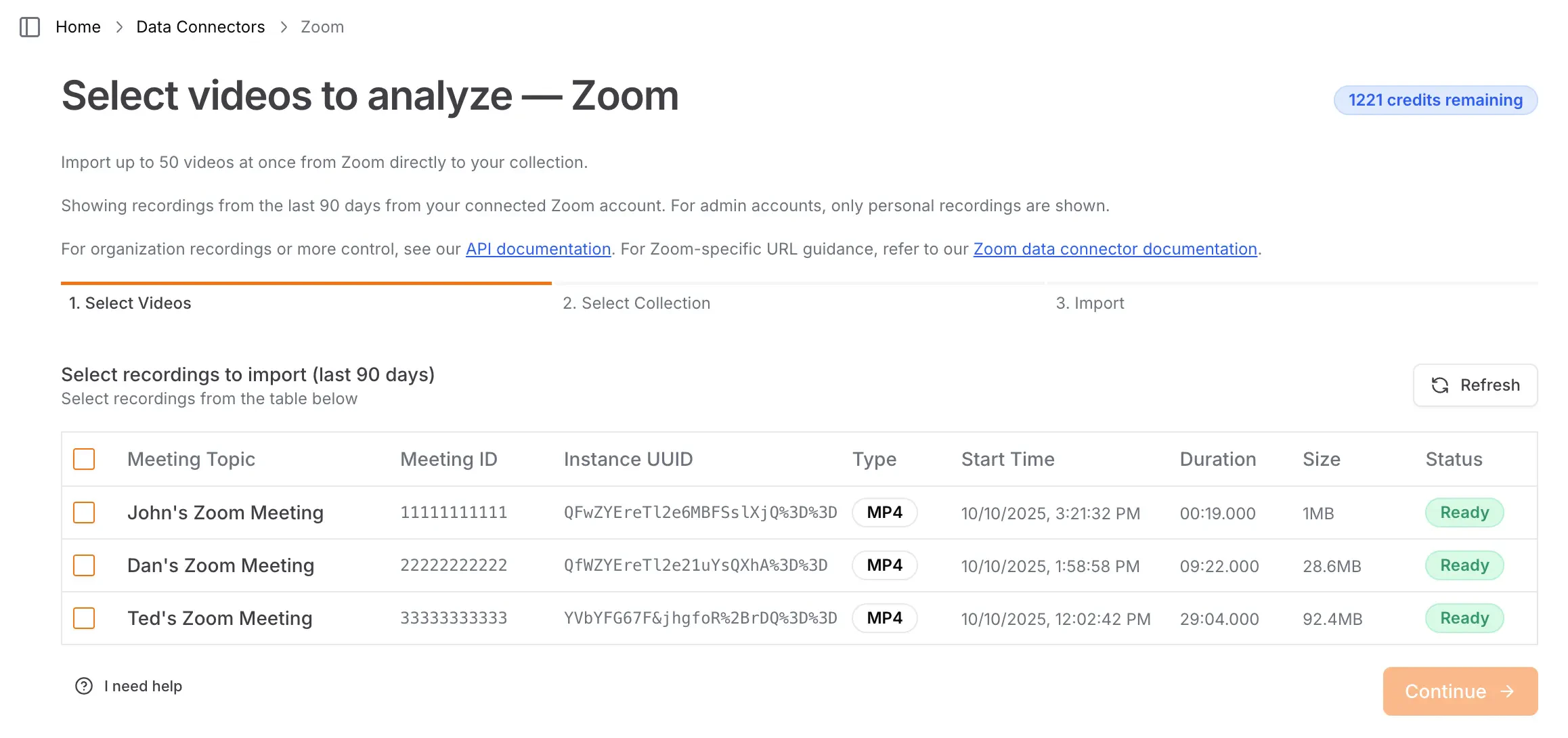 To access this page, visit [our app](https://app.cloudglue.dev/home/data-connectors) and click on **Select Videos** on the Zoom connector.
  ## Managing Access
You maintain full control over your data access. Remove this data connector by doing any of the following:
* **Revoke access** by deleting the Cloudglue app from your [Zoom account](https://marketplace.zoom.us) -> **Manage** -> **Added Apps**.
* **Remove connection** by revoking the connector on our website.
Once removed:
* You cannot import new recordings into Cloudglue until you reconnect.
* Any recordings you previously imported will remain in Cloudglue. These can be viewed and deleted from [File Management](https://app.cloudglue.dev/home/files).
## Security
Cloudglue uses Zoom OAuth to access recordings with minimal permissions. This approach:
* **Maintains your control** - You own and manage the connector.
* **Follows Zoom security standards** - Uses OAuth with minimum permissions.
## Managing Access
You maintain full control over your data access. Remove this data connector by doing any of the following:
* **Revoke access** by deleting the Cloudglue app from your [Zoom account](https://marketplace.zoom.us) -> **Manage** -> **Added Apps**.
* **Remove connection** by revoking the connector on our website.
Once removed:
* You cannot import new recordings into Cloudglue until you reconnect.
* Any recordings you previously imported will remain in Cloudglue. These can be viewed and deleted from [File Management](https://app.cloudglue.dev/home/files).
## Security
Cloudglue uses Zoom OAuth to access recordings with minimal permissions. This approach:
* **Maintains your control** - You own and manage the connector.
* **Follows Zoom security standards** - Uses OAuth with minimum permissions.